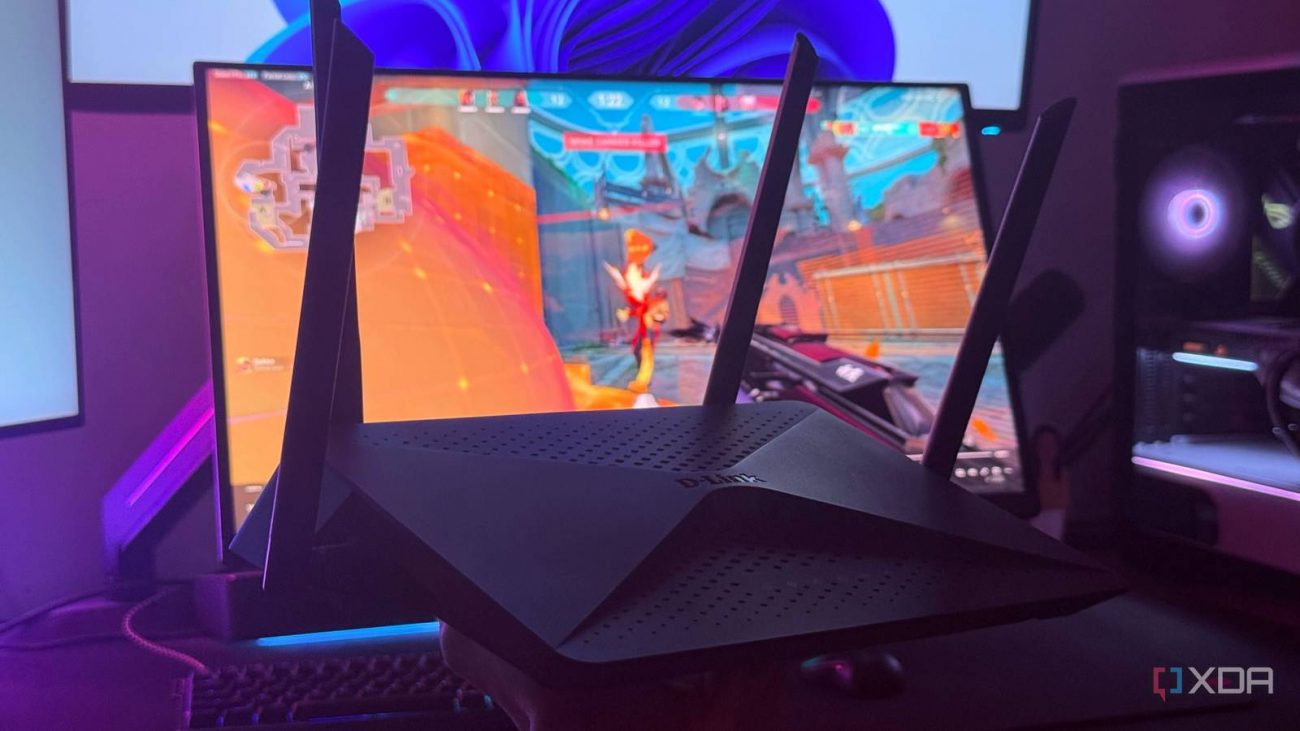
The topic I changed one router setting, and the lag during big downloads just disappeared is currently the subject of lively discussion — readers and analysts are keeping a close eye on developments.
This is taking place in a dynamic environment: companies’ decisions and competitors’ reactions can quickly change the picture.
I used to assume that a 500Mbps fiber connection was all I needed to prevent other devices from ruining my online gaming sessions. After all, games like Valorant barely use a fraction of that bandwidth. Still, whenever my younger brother started downloading games on my PS5 or Steam started downloading updates on my PC, I’d suddenly notice packet loss and sharp spikes in the Network RTT graph. Even though my ping only got slightly worse, those sudden latency spikes were all it took for enemies to teleport or shots to register late at the worst possible moments.
At one point, I considered upgrading my router because my DIR-882 dates back to 2017, but I had no trouble getting close to the promised speeds on any of my devices. As it turns out, the problem had nothing to do with raw bandwidth. I simply never configured my router’s QoS settings, which eventually led me down the rabbit hole of learning how QoS and SQM actually work. Now I know that lag during big downloads is all about congestion and how your router handles it.
QoS on your router keeps your most important connections feeling fast by prioritizing their packets.
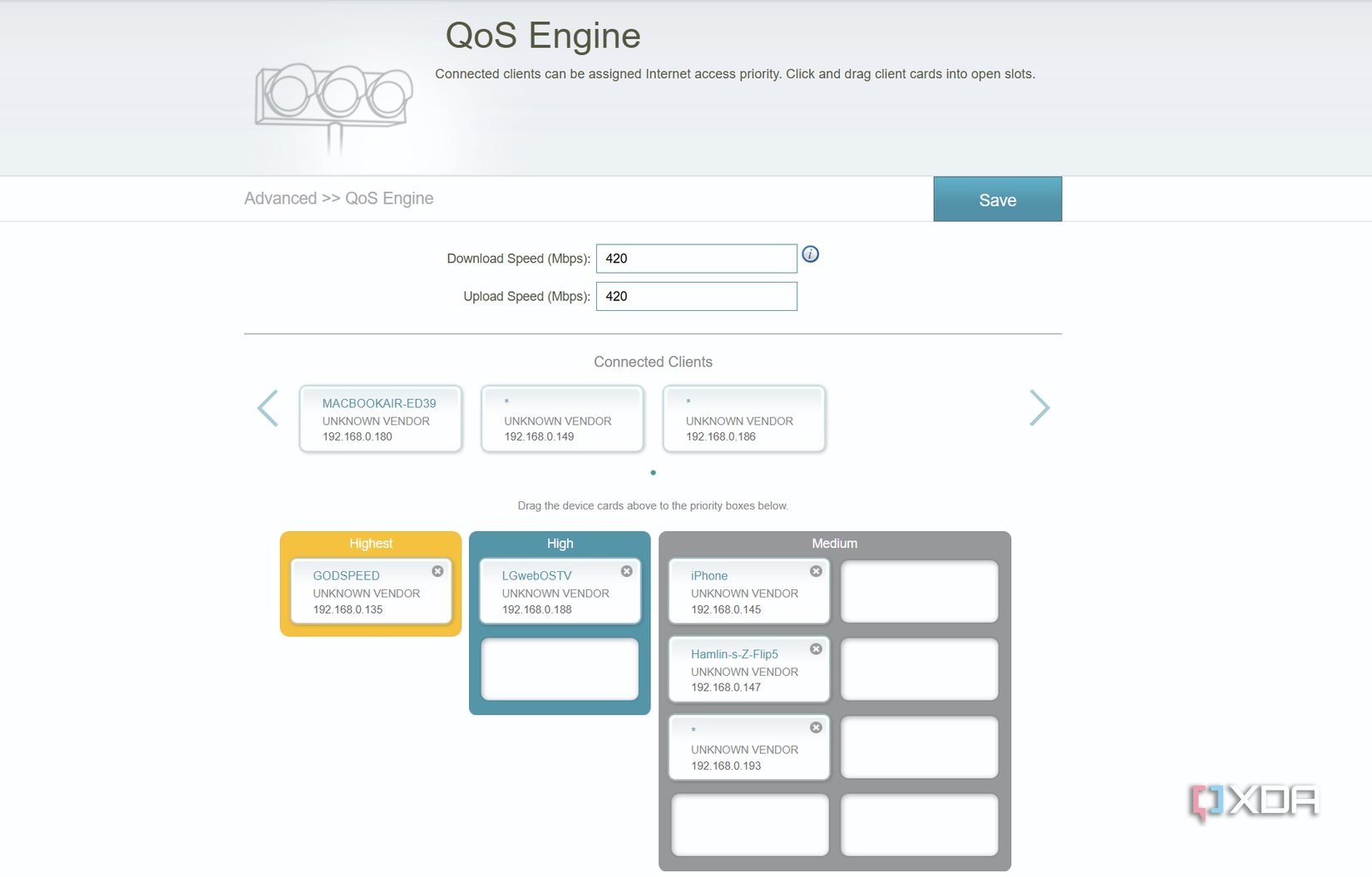
My router is pretty basic for today’s standards, and so is its QoS implementation. Regardless, it still gave me exactly what I needed to stop another device from ruining my ranked matches in Valorant. All I had to do was log in to my router’s admin page, go to Features > QoS Engine, and drag connected devices into one of the three priority slots. I put my PC in the Highest priority slot, TV in High, and my PS5 and other devices in Medium. More importantly, I set the download and upload speeds to 90% of what I was getting on Speedtest. This is what gives my router headroom to manage traffic before my internet connection becomes fully saturated.
While this instantly fixed the lag caused by downloads on other devices, it did nothing when the bandwidth hog was my PC, and that’s the main limitation of a basic QoS implementation. My router only prioritizes devices, not individual applications like Valorant, Steam, or Chrome. The good news is that many routers these days support adaptive QoS, which can identify latency-sensitive traffic and prioritize it over bulk downloads. My DIR-882 is too old for that, which is why I had to take the harder route by installing OpenWrt and configuring SQM myself.
If you have an old router as I do, you should see if it supports custom firmware like OpenWrt before you throw it away and upgrade, because that was the only way I could unlock proper queue management on my DIR-882 without buying a new router. After flashing OpenWrt, I installed luci-app-sqm and sqm-scripts from system > Software, navigated to Network > SQM QoS, and enabled SQM. Then, just like with QoS, I set my download and upload limits to 90% of my bandwidth on Speedtest.
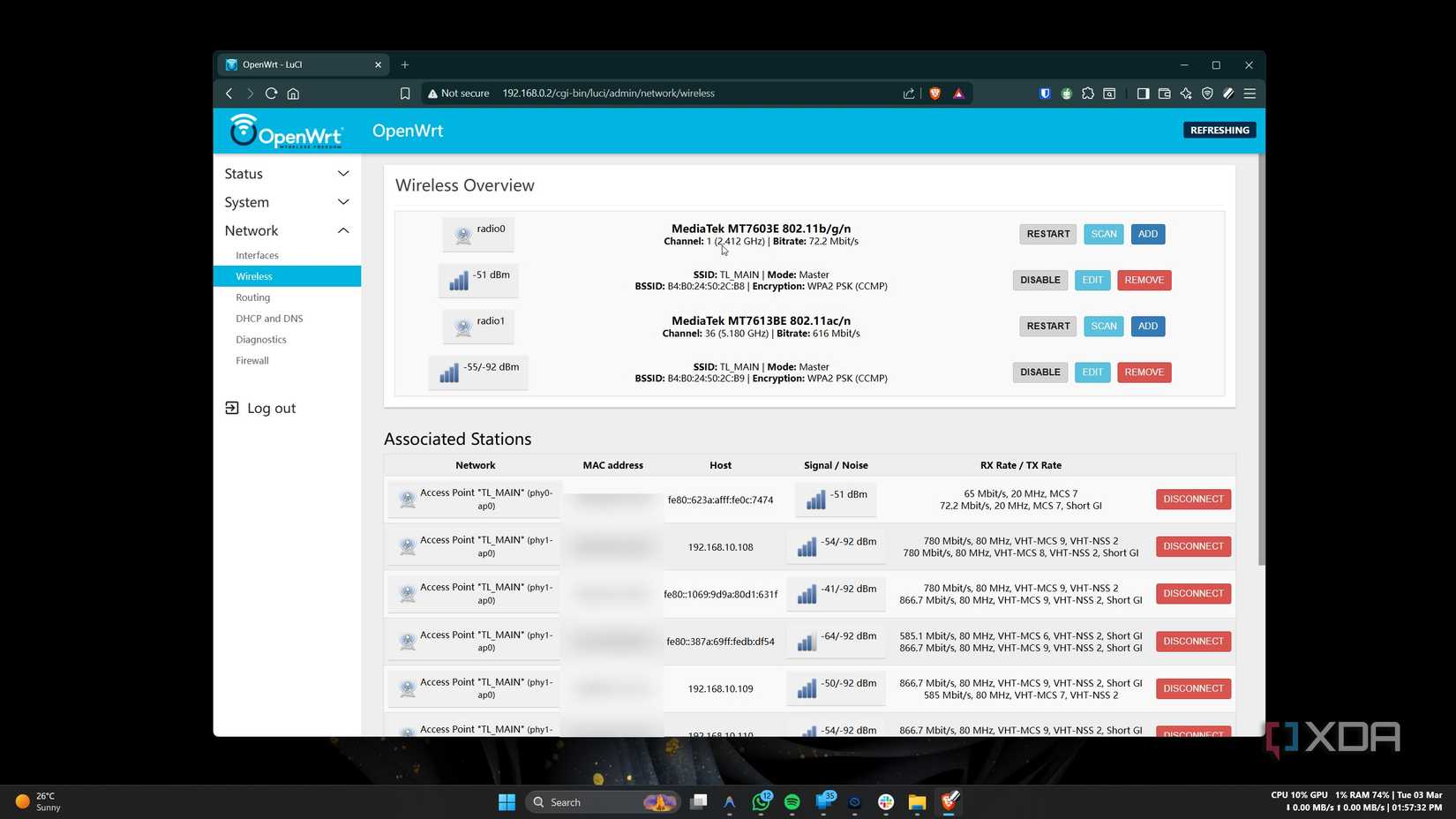
Unlike QoS on my router, which only lets me put my PC in the highest priority, SQM separates network traffic into individual flows and schedules them fairly. This means a file download can no longer fill the queue and force latency-sensitive packets to wait behind it, which is essentially what causes bufferbloat. The end result is a more stable ping and less Network RTT jitter in Valorant while downloading files on my PC, much like how QoS improved latency when other devices were hogging bandwidth.
Enabling SQM isn’t without compromises, especially on old routers with weaker CPUs. My DIR-882 uses a dual-core MediaTek processor, and its age shows because enabling SQM turns the CPU into the bottleneck. In my case, I get closer to 300Mbps instead of the 400Mbps download and upload limits I set. That’s why I switched from CAKE to fq_codel, which is less CPU-intensive and lets my router sustain higher throughput. Even then, if I ever upgrade to my ISP’s 1Gbps plan, I don’t think I’d get anywhere close to the bandwidth limits I set, which would force me to get a new router anyway.
That said, when I’m playing online multiplayer games like Valorant or Battlefield 6, I don’t care that my downloads are a little bit slower. The download can take its time in the background when I’m busy with the game. And to be fair, even 300Mbps is more than enough for whatever I download anyway. What I don’t want to deal with is packet loss and rubber-banding in the middle of a ranked match. If I can spend time playing games instead of patiently waiting for my Steam downloads to finish, that itself is a win.
If I had a newer router, I’d just enable adaptive QoS and call it a day. For most people, that’s enough to prevent active downloads or multiple 4K streams from causing latency spikes while gaming. I only went down the OpenWrt and SQM rabbit hole because I had no other option besides upgrading to a newer router with better QoS support. Unless you’re dealing with my exact problem and stuck with an old router, you really don’t need to flash your router just for SQM. At the end of the day, the real problem isn’t your internet speed but how your router handles congestion when the connection is under load.
Unlike my DIR-882, the TP-Link Archer GX90 supports Game Accelerator QoS to prioritize gaming streams and keep your latency stable. It’s overkill for most people, but some gamers might actually appreciate the extra traffic controls.