The topic Zorin OS forced me to unlearn three Windows habits that were slowing me down is currently the subject of lively discussion — readers and analysts are keeping a close eye on developments.
This is taking place in a dynamic environment: companies’ decisions and competitors’ reactions can quickly change the picture.
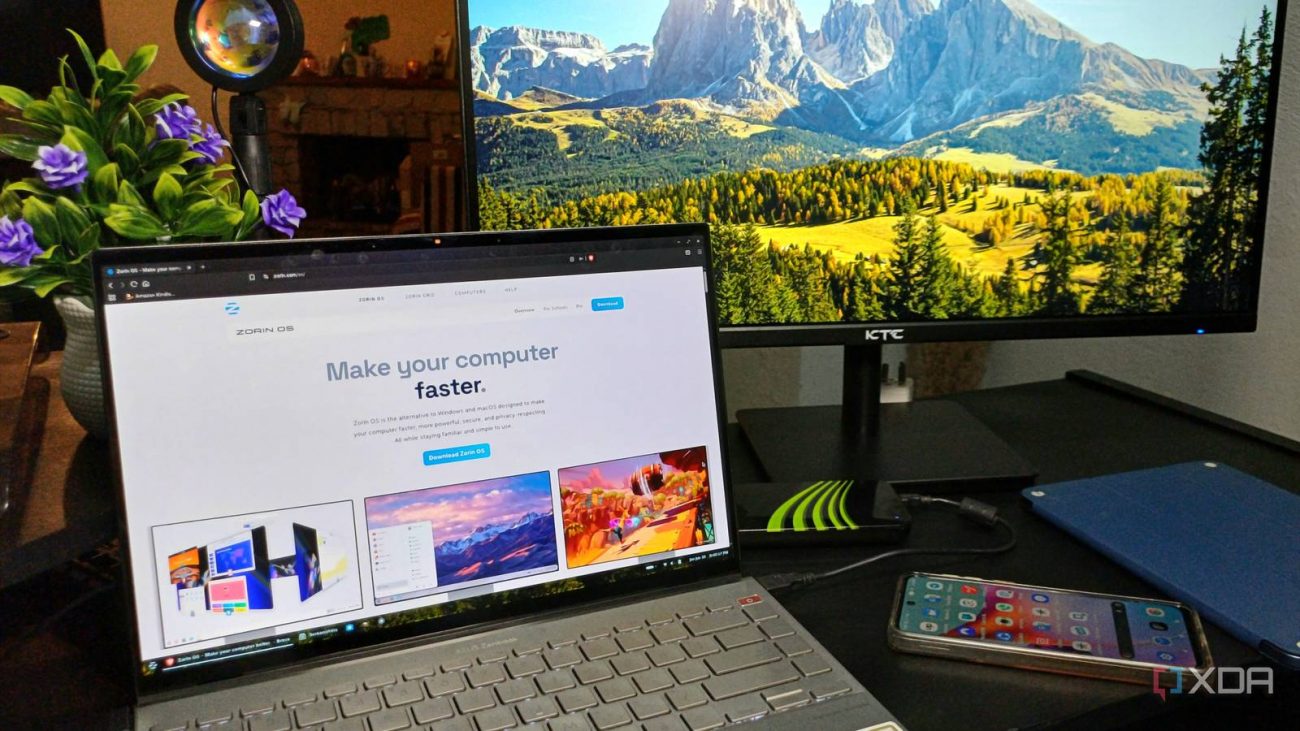
I’ve been using Windows for many years, but thought it was time to give Linux a try. Since I wanted to use a distro that felt familiar enough for a Windows user, I decided to give Zorin OS a try. I knew it wasn’t going to be an exact replica, but from what I had read, it looked close enough that it wouldn’t feel too weird. I guess my Windows confidence got the best of me, and I didn’t think I would need to look up the small things I thought Windows had trained me for, such as using certain keyboard shortcuts, where to find certain options, and how to update the OS and apps. Since I mostly use keyboard shortcuts for certain things, that was the first place where my Windows habits got in the way.
Out of all the things I expected to slow me down, learning new keyboard shortcuts was not one of them. On Windows, whenever I needed to take a screenshot, I would press Win + Shift + S, but then Zorin gave me a reality check when I realized nothing happened. Then I had an “Oh, right!” moment and realized I wasn’t in my Windows neighborhood anymore.
It wasn’t a deal-breaker for me and was kind of funny because I wasn’t trying to do some complicated Linux task: all I wanted was a screenshot. I think Zorin’s familiar Windows-like look worked against me a little here. In the end, I decided to press the Print Screen key when I had my hands on the keyboard and click the camera icon in the indicator menu when I didn’t feel like taking my hands off the mouse.
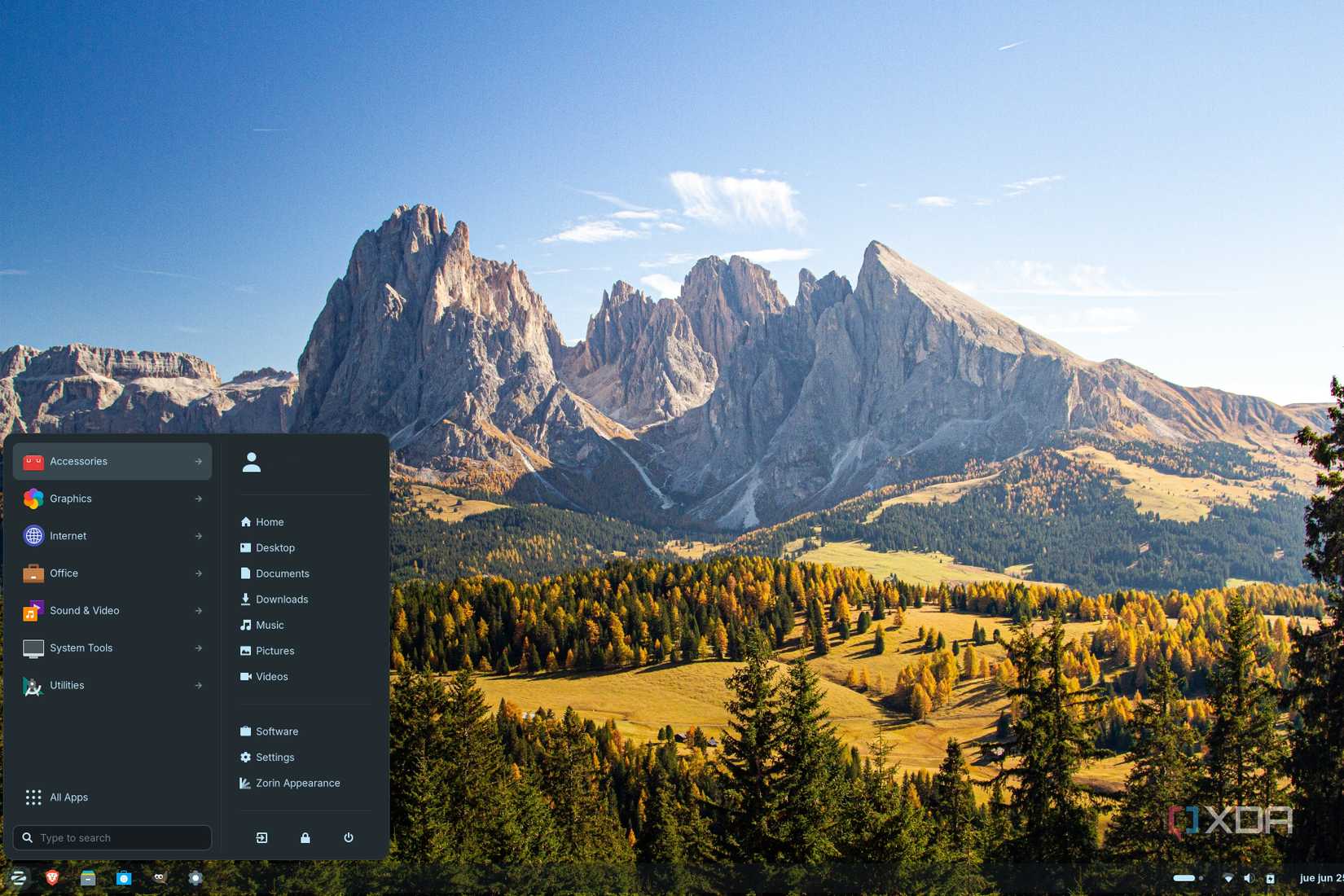
As if the screenshot scenario wasn’t enough, I had to deal with what I considered visual habits. Zorin OS didn’t look too different than Windows 11, because I set it up that way, and that was precisely the problem. I kept treating it like Windows 11, and when I needed to adjust something, my eyes would go straight to the menu. I kept expecting the same kind of Settings shortcut I’m used to seeing around the Start menu.
Since Settings was not the one-glance shortcut I expected it to be, I found that I could go to the Zorin Menu -> Settings to access options such as Displays, Keyboard, and others. However, I decided to search for Settings, then just pinned it to the taskbar. That worked better for me because I stopped playing hide-and-seek with Settings and put it where my eyes were already going anyway.
After all the other trip-ups, I didn’t think the updates would be any different. On Windows 11, I’m used to going to
But when I needed to check for app updates, I would go to the Microsoft Store. So when I checked for updates on Zorin using Software Updater, I was happy to see that I could also install system updates. This is something I wish I could do from one obvious place on Windows, since the more I can get in one stop, the better.
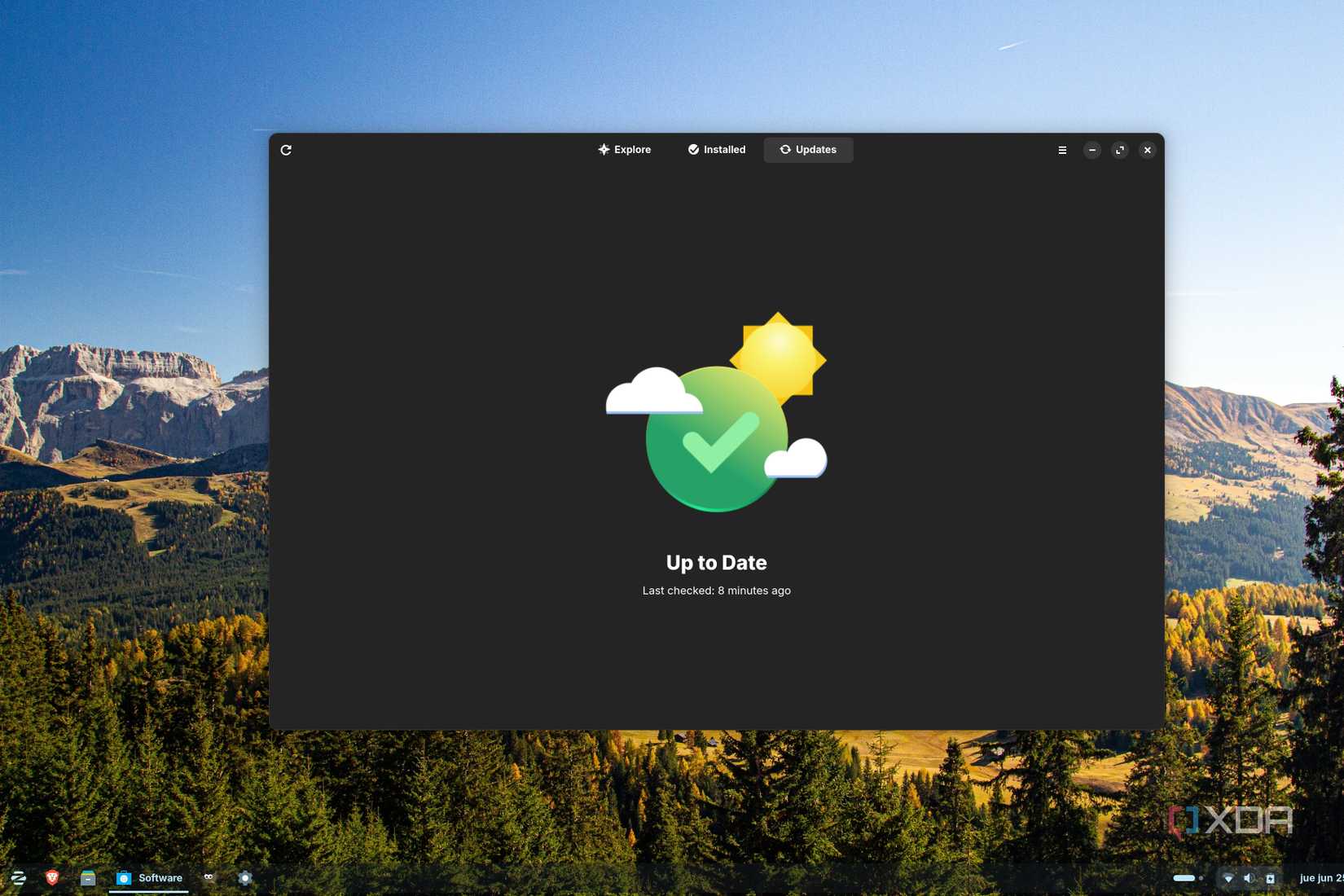
That was a nice surprise, and something I’m going to miss when I need to use Windows. This was one of those, “Ugh, Windows, why can’t you do this too?” moments. This may not seem like a big deal, but when I already have lots to do, saving at least a few clicks is something I greatly appreciate.
Sure, someone could say that the trip-ups could have been avoided with some research. Zorin has various support pages with what users need to know. for example, I found the Zorin support page, where I found all the information I needed about what the screenshot tool can do. It can take screenshots and record video. There are all types of pages to choose from, ranging from basic to more advanced.
Zorin can be similar to Windows, depending on how you customize it, but there will be clear differences, and it’s always better to read up and see if you already know how to do it than to try something and have to go off on a side track to research.
I know I could have done some research beforehand, but I was trying Zorin for the first time. I assumed I would figure it out as I went along. I’ve been a Windows user for many years, and I thought I didn’t have to read about basic things like how to take a screenshot. I figured that if I couldn’t find it, maybe I just needed to explore some more.
However, once I realized I was relying too much on my Windows experience, I checked the official Zorin support pages. I researched how to take screenshots and update apps. Next time, I’m not going to assume I don’t need to research something just because it’s something basic. Zorin was a good choice for me because it made Linux less intimidating, but a familiar layout still does not mean everything will work the way my Windows muscle memory expects.
Some habits are hard to break, especially when they are all you’ve been using. I know it’s only going to take time to get used to Zorin, and that muscle memory will play tricks on me some more, especially when I’m going to be using both of them. Zorin was a great choice for me to get out of my Windows comfort zone, and time will tell whether it becomes more than just something I tried.