The topic Your TV’s motion smoothing isn’t the only setting ruining movies is currently the subject of lively discussion — readers and analysts are keeping a close eye on developments.
This is taking place in a dynamic environment: companies’ decisions and competitors’ reactions can quickly change the picture.
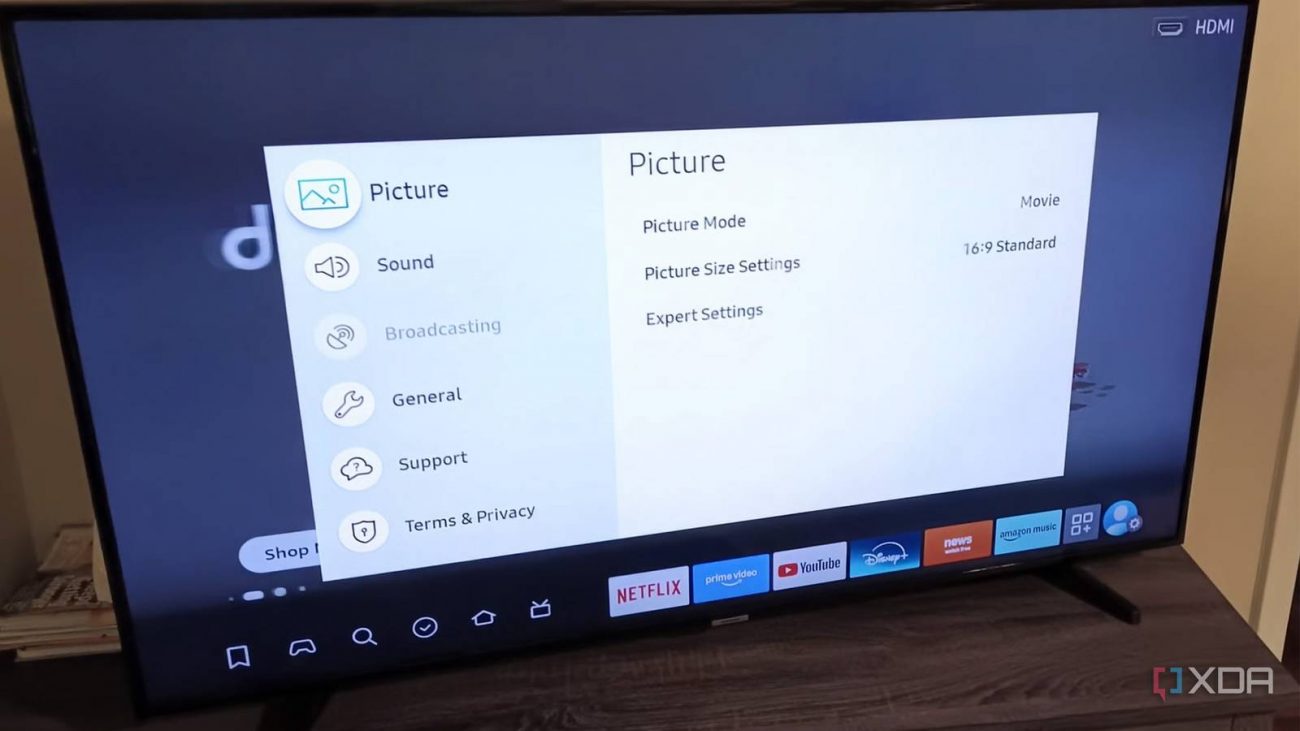
Almost everyone knows that motion smoothing is a one-way ticket to an awful viewing experience. It’s the main reason some TVs look too “smooth,” where the picture doesn’t seem to pan naturally across the screen, resulting in an almost plastic appearance. But did you realize there are other settings that can affect how movies look? Most people set up a TV and start using it, trusting it to be correctly calibrated out of the box, but that’s rarely the case.
If you have never taken the time to tweak your TV’s picture settings, you’re in for a surprise. With even a few simple changes, you can improve how movies, TV, and games look on your display (though optimal settings vary by media type). Taking the time to learn the ins and outs can turn a movie that already looks great into something mind-blowing.
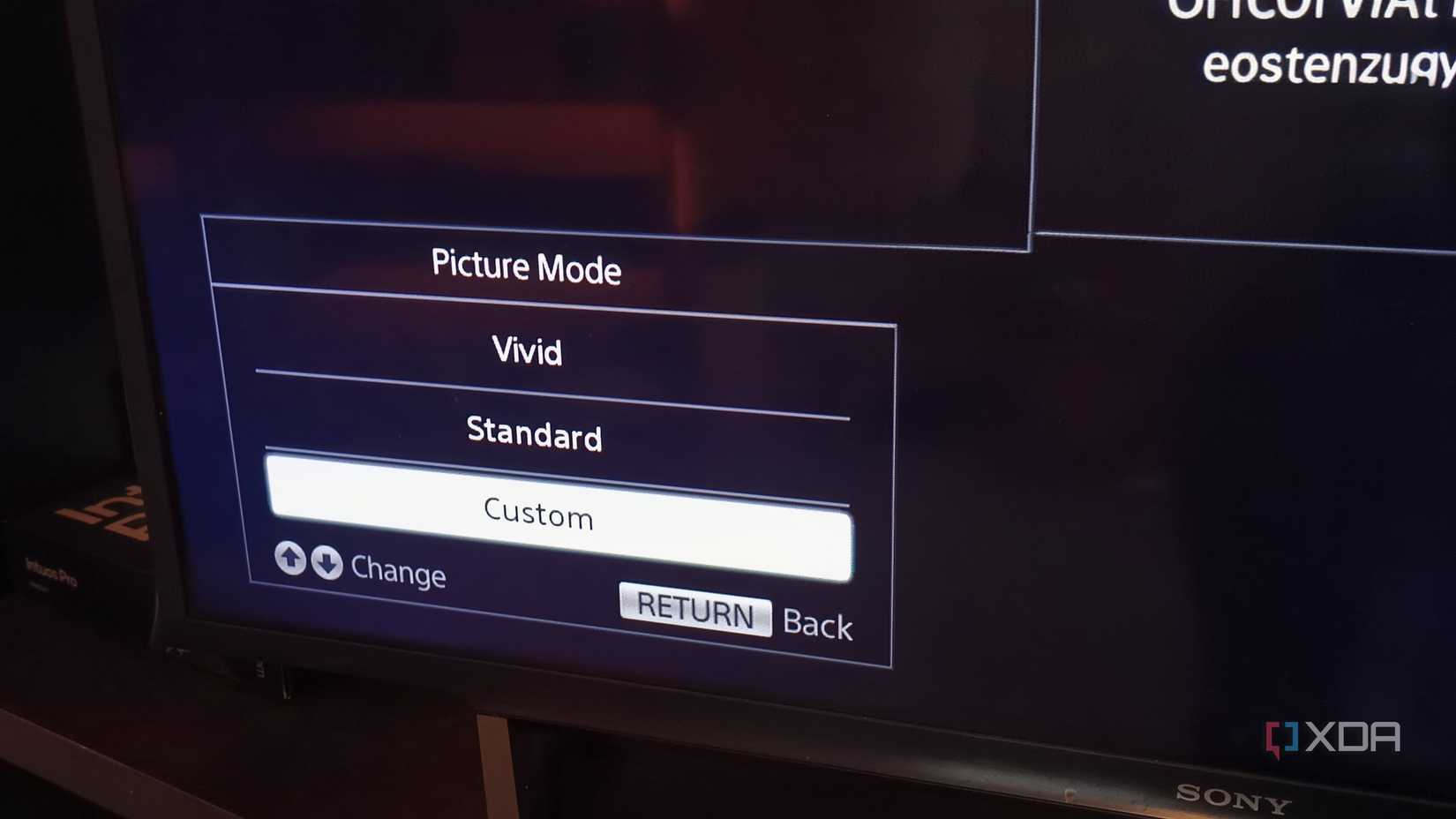
If you’ve scrolled through your video settings, you might have come across a mode called Vivid or Dynamic. Selecting it probably made your screen much more colorful, but here’s why: it cranked up the saturation and brightness. That’s not how movies are meant to be seen, and these modes are often used on display models to catch the eye of anyone walking through the store. Under the bright fluorescent light of a big-box retailer, it might look decent, but at home? That setting will look seriously unnatural.
There’s usually an alternative mode labeled Cinema, Movie, or something similar. Higher-end TVs might even have a Filmmaker mode that optimizes display settings to ensure you get the best possible experience.
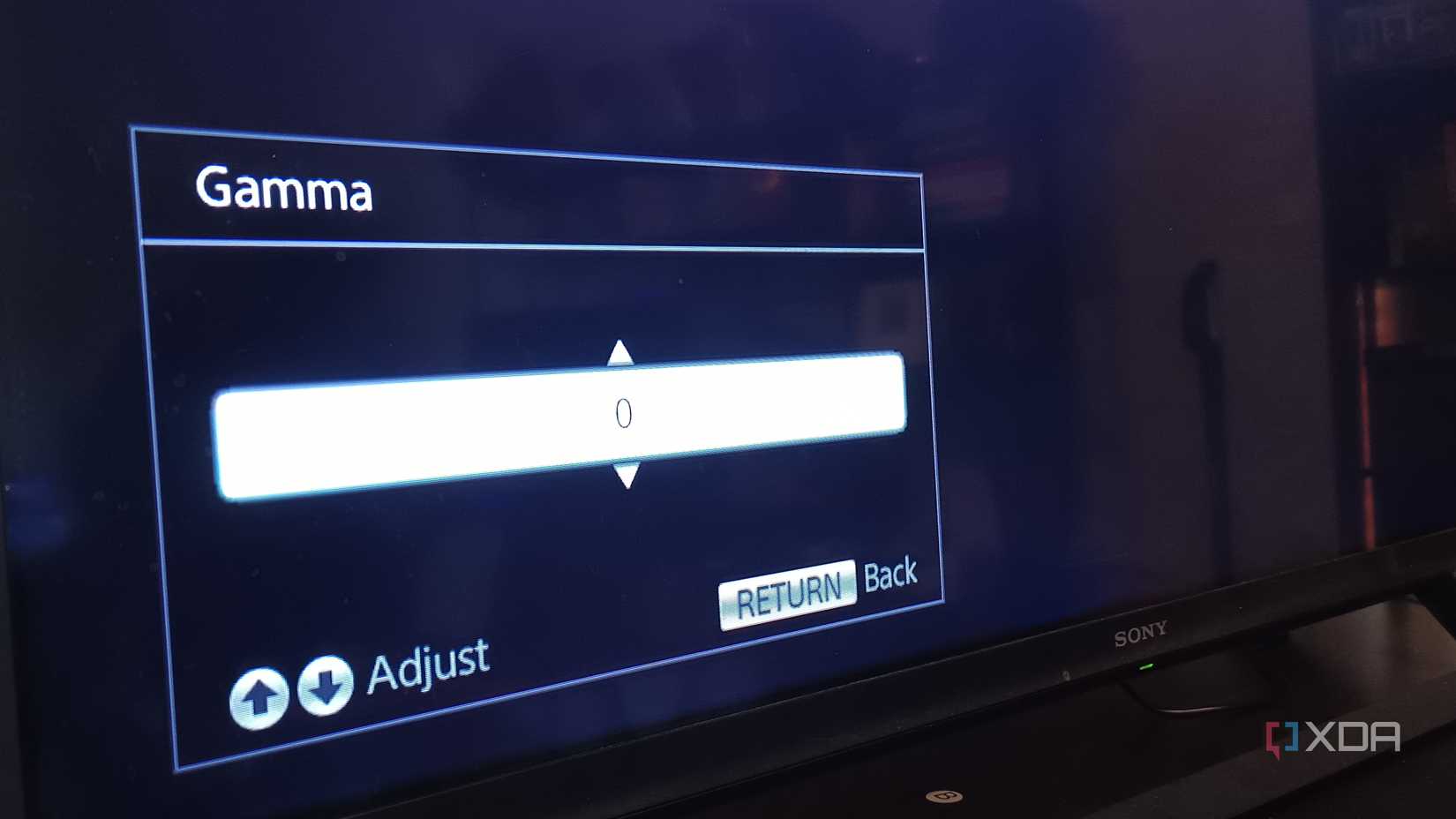
You might have seen a setting labeled Gamma in your video options. It’s a fancy-sounding name for something that’s relatively simple: it controls how your TV transitions from black to white, affecting both shadows and overall brightness. Surroundings make a difference, too. If you’re watching a movie in a dark room, like a home theater, you’ll want a higher gamma setting. For watching in a relatively well-lit area, a lower gamma will enhance average brightness.
Most screens default to a 2.2 gamma level, while dark rooms often call for a 2.4 gamma setting. A good midpoint between these is BT.1886, an international standard designed to optimize picture quality. It’s particularly useful for anyone watching on an OLED or a display that can achieve near-perfect black levels.
Almost every TV produced in the last 15 years has an Eco Mode that reduces power consumption, and it’s typically enabled by default. After all, who doesn’t want to save money on their energy bill and feel good about helping the environment? When it comes to watching a movie the way it was meant to be seen, though, forget the environment. Eco Mode reduces the maximum brightness a TV can reach, and as a result, the display’s overall color volume is also impacted.
HDR relies on brightness, too, so a power-saving mode can degrade dynamic range. And here’s the secret: it might not be called Eco Mode. Look for anything called adaptive brightness, ambient light sensing, auto-brightness, etc. Any setting along those lines is likely to negatively impact overall video quality. When you’re watching season eight of Game of Thrones (you know the episode), a setting like this can make an already-dark scene nearly impossible to see.
Far too many people think that sharpness actually affects the image’s sharpness. What it really does is highlight the edges of things on-screen. When the setting is turned up, it can actually reduce more minute details and sometimes result in a halo-like effect around some objects. It can also increase film grain and noise. If you’re watching on a 4K TV, it’s usually a good idea to set sharpness to zero.
And if your TV has any AI functions like “Super Resolution,” you’ll want to turn those off, too. These settings add more detail to scenes, which can often introduce unnecessary noise and graininess.
Fair warning: when you first make changes to your video settings, it might look off. That’s because you’re used to how your TV looked before, and it can take a bit of time for your brain to adjust. On the other hand, your settings might be so far off that when you watch something with the proper configuration, you’ll wonder why you ever waited so long to fix it.