The topic Your Windows apps don’t need to be installed — here’s why portable apps… is currently the subject of lively discussion — readers and analysts are keeping a close eye on developments.
This is taking place in a dynamic environment: companies’ decisions and competitors’ reactions can quickly change the picture.
Installing a program or app on your computer is one of the most common and natural uses for our computers. At the very least, you’ve probably had to download a web browser to replace the built-in Microsoft Edge, or something like VLC Media Player that actually works with all your media files.
But installing apps on your computer isn’t the only way to use those apps. Portable apps are an alternative way to use many of your favorite apps, and they come with a few important benefits. But it can be easy to miss that they exist in the first place, and that’s a shame.
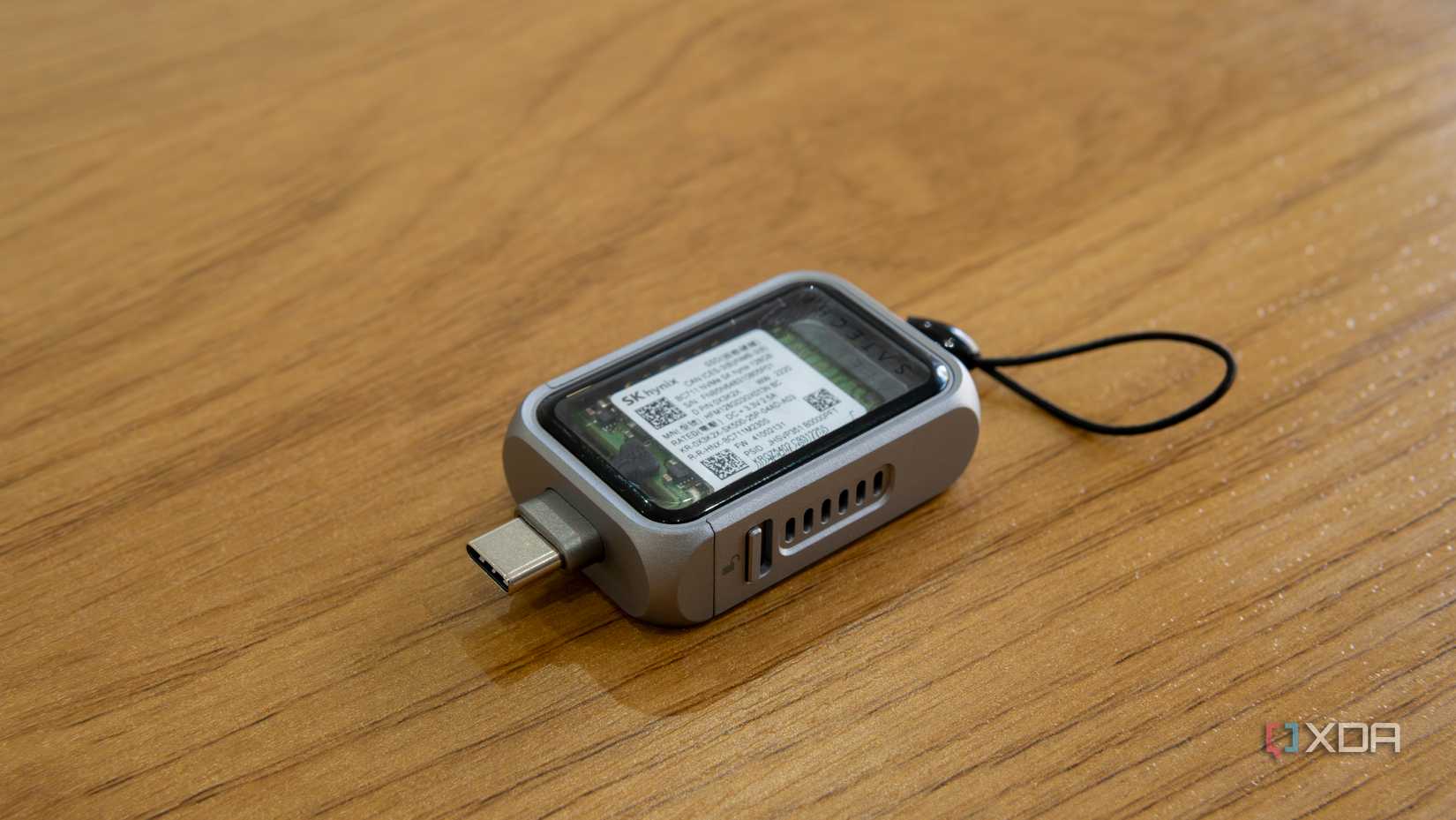
It should be obvious by the term “portable”, but the primary benefit of portable apps on Windows 11 is that you can easily take them anywhere. Not just on your computer, but on a flash drive or whatever external device you have.
The main problem with installing an app the typical way is that files are stored in a way that heavily depends on the structure of the file system. Apps themselves are usually installed on the C:Program Files folder, but your user data related to that app will probably be in a completely different place, and multiple pieces of data might be scattered here and there. So when you install an app, you can’t just drag the EXE file to a USB drive and run it from there. There’s a structure that’s expected, and it’s essentially impossible to move it all into a flash drive you can plug into any other PC.
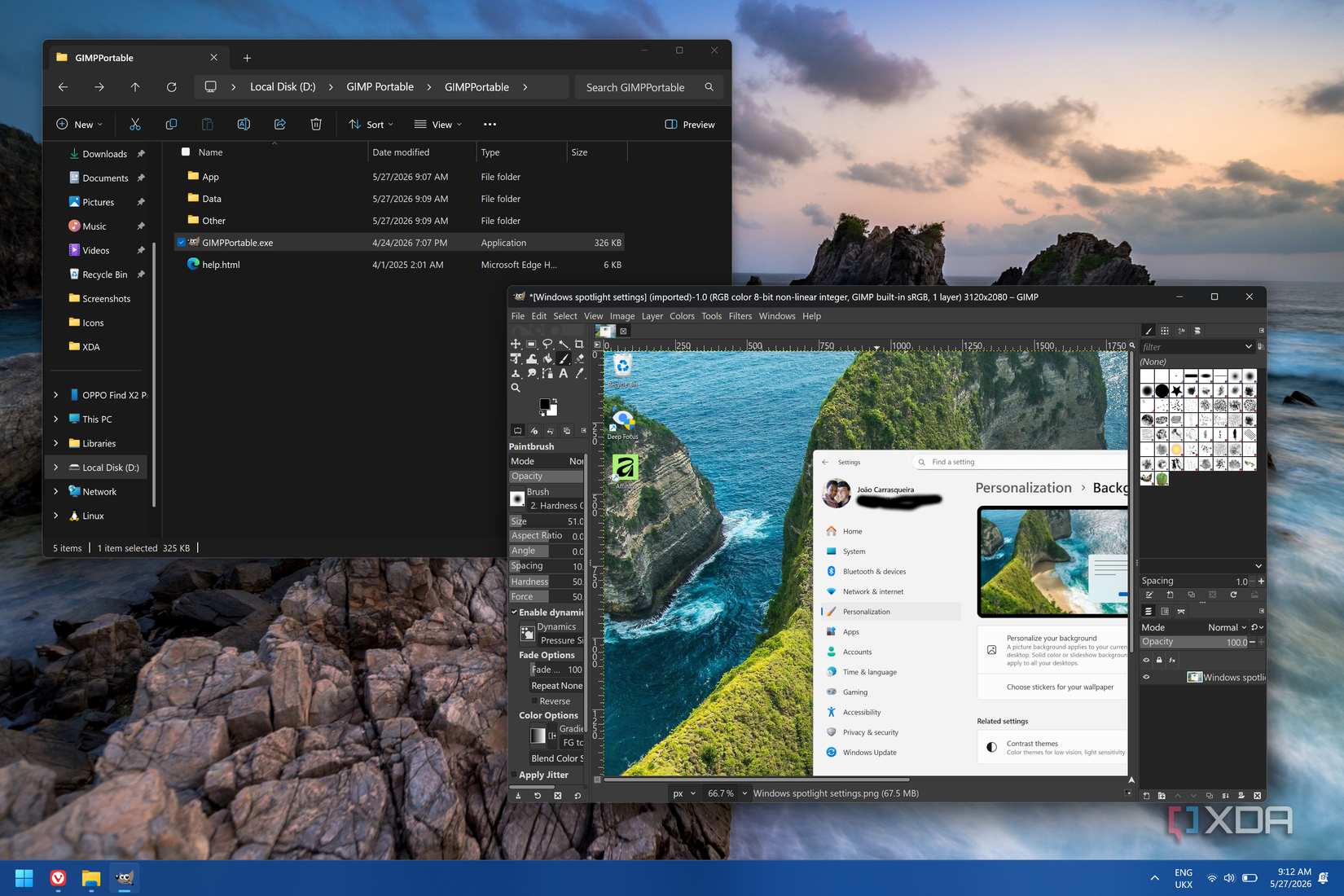
Portable apps change that. When you “install” a portable app, it’s not tied to your operating system in anyway. All the files are typically stored in a single folder, containing both the app data and the user data. If you want to use that app on a different PC, all you need to do is copy that specific folder into your flash drive (or even cloud storage), and then access it on that computer. It will run just fine, and keep any user data along with it, so your browser can still remember your history, for example.
You don’t always need to install your software directly on your PC
The portability of an app also carries another inherent benefit in how easy it is to clean up after them. Because of the way an installed app can scatter its files all throughout your computer, when you uninstall it, it can be a bit of a gamble to make sure that all the related files are removed and not taking up space on your disk for no reason.
Since portable apps store all their data in a single folder, when you’re ready to get rid of an app, you can delete that folder and generally trust that everything related to that app is gone. No leftover user data or anything to worry about.
This makes portable apps great if you’re only using an app briefly to see what it’s like, or if you’re in a line of wort like mine, which might require you to take screenshots of an app you don’t want to use in the long term. Install a portable version, do what you need, then remove it completely, no strings attached.
Windows Sandbox has been indispensable in helping me test suspicious applications.
A lot of developers already recognize the value of portable apps, so there are many programs that already offer official portable versions. when you’re looking for an app you want, you can check for alternative download methods to see if the developers offer such an option.
But for the most part, your best bet is using a website aptly named PortableApps. True to its name, this is a platform that’s been around for almost two decades, and it offers versions of hundreds of popular apps, repackaged in a portable format, with all the benefits you’d expect.
These cover a very wide range of use cases, from accessibility focused apps like screen readers, development tools and text editors, games, and even more demanding software, such as Inkscape, GIMP, or Darktable, or office tools like OpenOffice and LibreOffice.
PortableApps is sustained by a wide community of contributors, so new versions of apps are typically added soon after they’re officially released. You can even find different variants of some apps, like beta releases of web browsers.
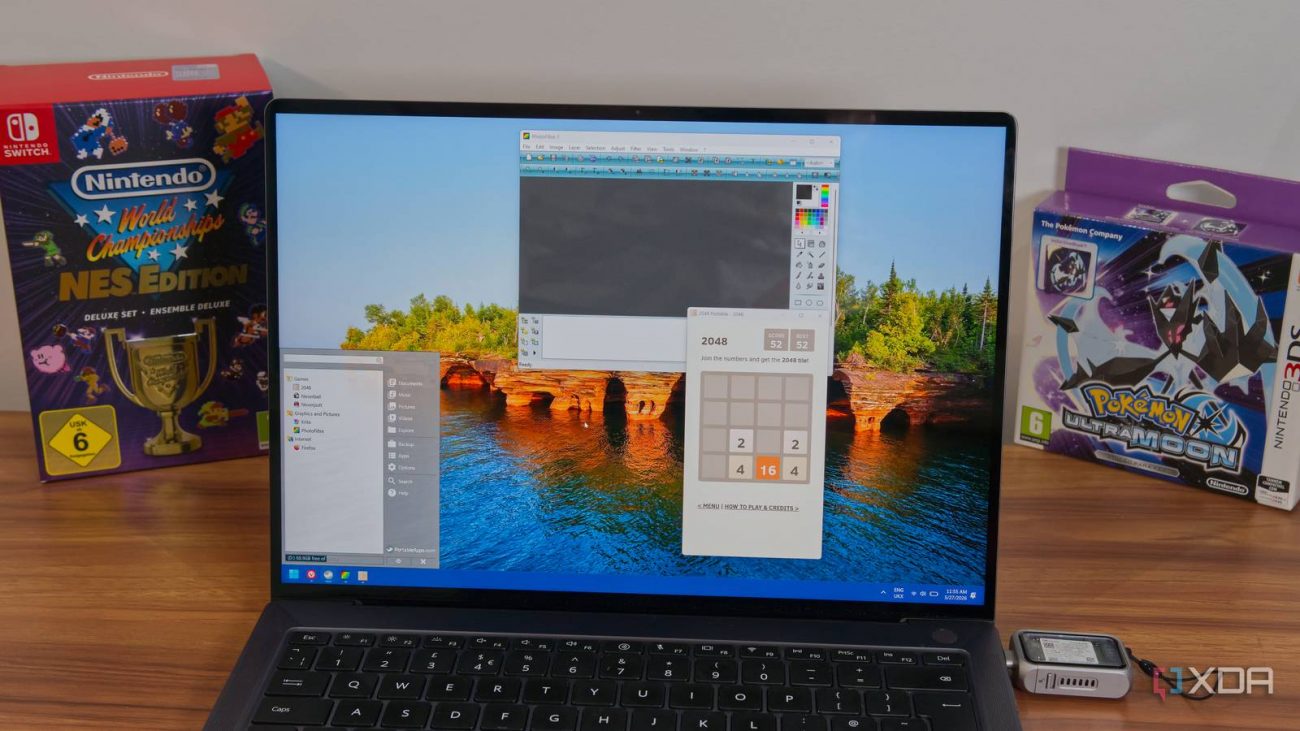
PortableApps even has a dedicated launcher and platform that can also be installed in a portable format. This platform lets you easily install, manage, and launch all your portable apps in one place. It can even create standard folders like Documents and Pictures to more closely replicate the typical file structure of Windows while remaining fully portable and independent from the host system. The launcher is designed to look like the classic Start menu, too, so it’s an experience that feels very complete and almost like a callback to the Windows XP era.
Of course, there are also a lot of apps that aren’t here, and that can be for a few reasons. Many apps may be paid or have restrictive licensing agreements that prevent them from being repackaged in this way to be made portable. Plus, some apps may require tighter system integrations that can’t be solved with simple folder redirection.
Whether you need to take your apps with you to different PCs or not, portable apps are a very appealing concept. Naturally, the portability is the main selling point, but simply being able to easily delete all the files related to an app makes things a lot easier if you find yourself needing apps only for a short period and you want to get rid of them entirely afterwards.
I frequently use portable apps myself, whether it’s on Windows or Linux (where the AppImage format serves a similar purpose), and I recommend checking out this option the next time you need to install an app. It could save you some headaches.