The topic I used to avoid OneDrive until I discovered these 4 features is currently the subject of lively discussion — readers and analysts are keeping a close eye on developments.
This is taking place in a dynamic environment: companies’ decisions and competitors’ reactions can quickly change the picture.
Microsoft OneDrive is one of the most frequently disabled services on any new Windows device. For many users, it’s one of the first steps after a fresh installation, and one might find countless user forums dedicated to removing it from the OS entirely. This is somewhat understandable. The integration feels forced, the automatic syncing of local data to Microsoft servers raises concerns, and it can often create massive confusion by changing default file paths. After all, who needs a Desktop and a OneDrive Desktop?
When a native feature is implemented so poorly, it can be quite easy to overlook the value it provides. In case you have written it off as pure bloatware, here are the four less-talked-about features that might just change your mind.
A major pet peeve that drives most users away from OneDrive is its tendency to sync every single file on the desktop, pictures and documents folder to the cloud, whether they want it or not. This is one of the many default Windows features that annoys users like myself to no end.
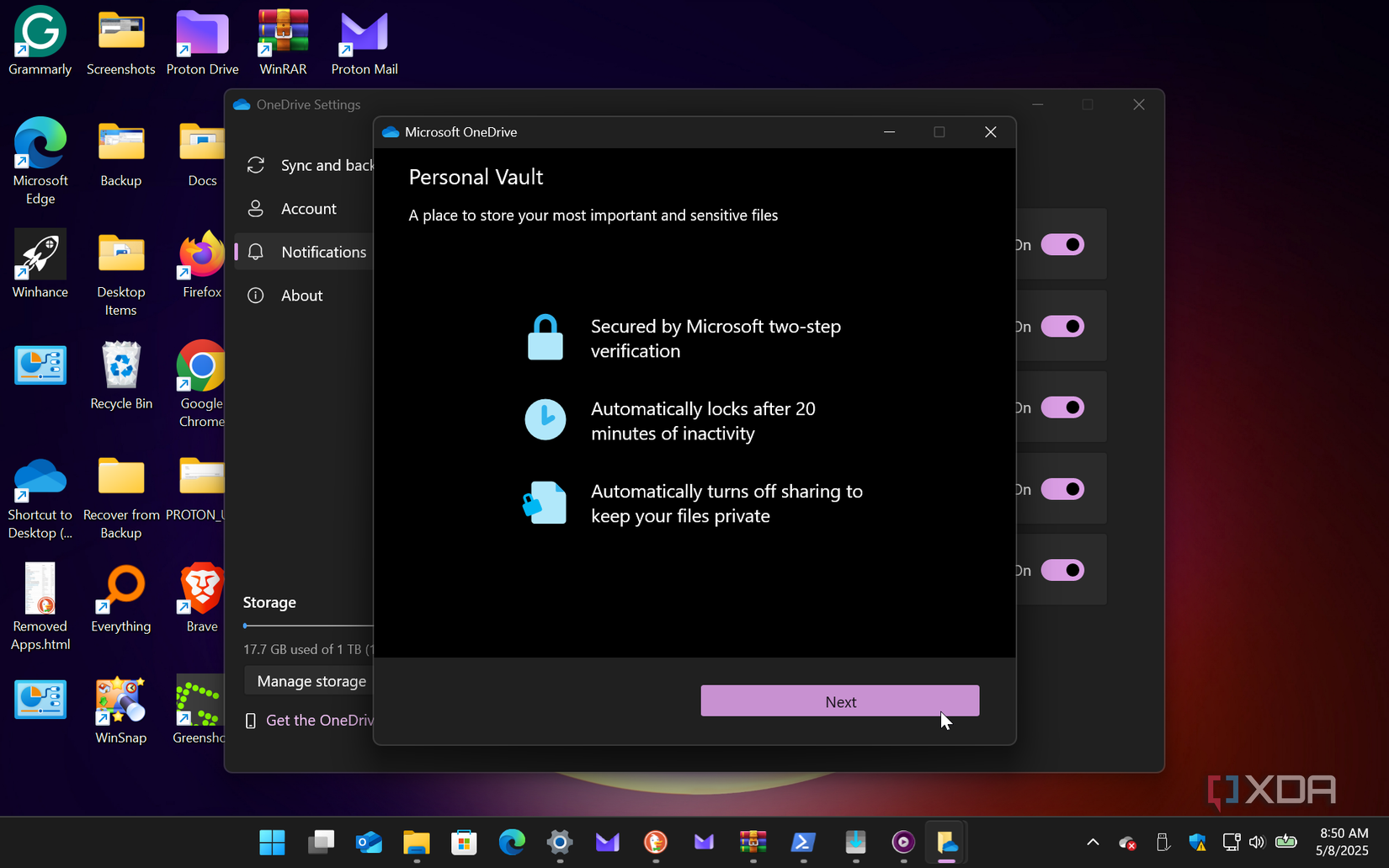
Files on Demand is a feature that hands control back to you. Depending on your kind of workflow, you might want to “offload” massive, rarely used archives to the cloud to save disk space while keeping critical project files for snappy offline access. By right-clicking any file, you can toggle between “Always keep on this device” for quick access or “Free up space” to keep the file visible but stored in the cloud.
You can access files on Windows 11 by saving drive space using this OneDrive feature.
This is one of the features that I would like to call one of the best-kept secrets in the Windows ecosystem. While OneDrive is often viewed as a strictly “PC thing”, its integration with the two most popular mobile OSes looks and feels incredibly polished.
For anyone like myself who juggles multiple PCs or travels frequently for work, this is a seriously underrated feature. I no longer have to stress about transferring a specific document to my laptop before heading out, because if it’s in my sync folder, it’s already going with me. The mobile app is surprisingly enjoyable to use too, especially with the built-in Microsoft Lens functionality that lets me scan physical documents directly into cloud storage. This feature has saved me the hassle of having to email the files to myself or carrying an external SSD altogether.
OneDrive’s Personal Vault feature is still fully functional and supported in 2026, though you probably wouldn’t know about it given how little Microsoft advertises it (if they advertise it at all). It can be best described as a digital safe inside cloud storage.
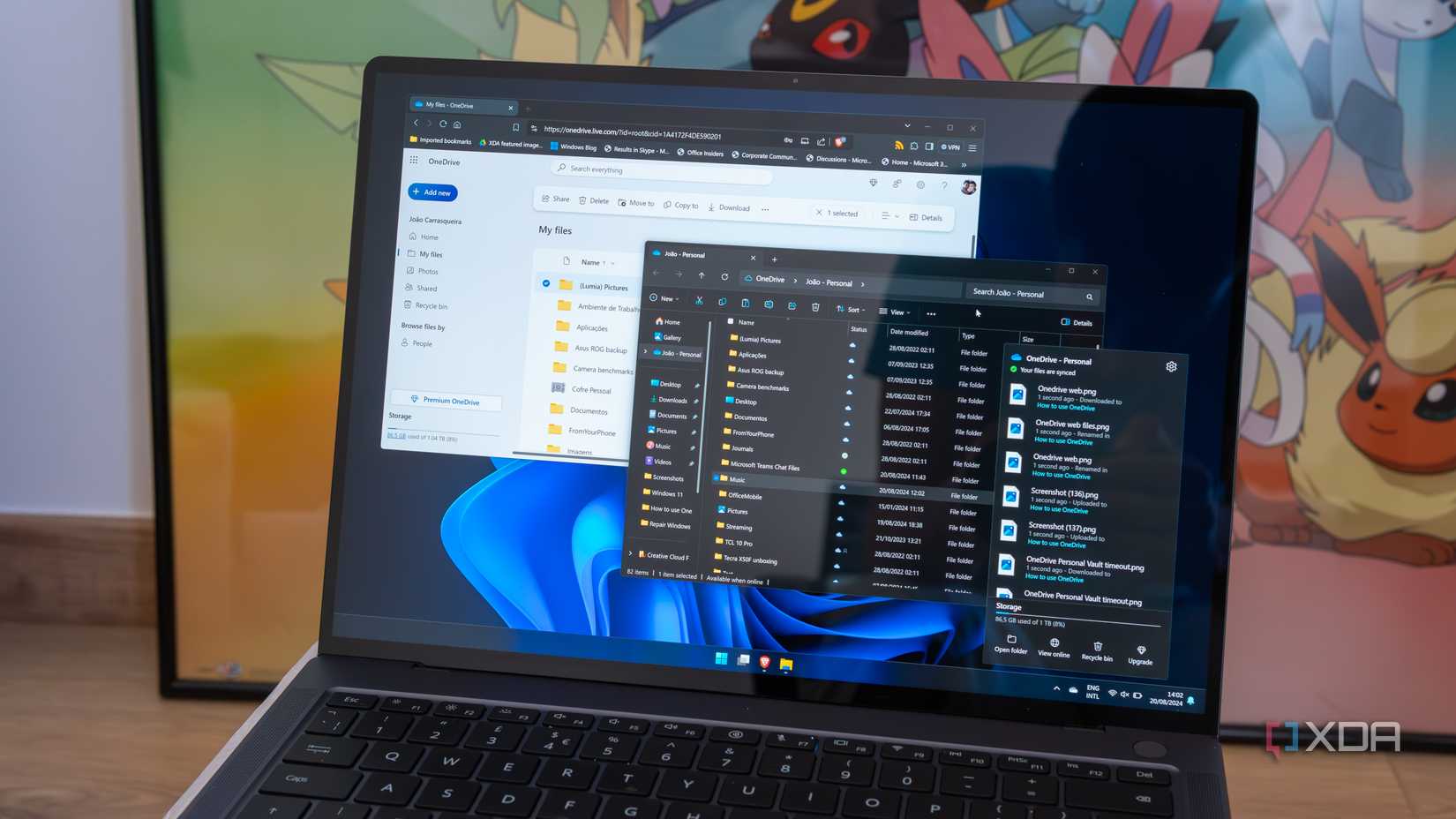
It can be useful to protect your most sensitive data, such as scans of your national ID, biometric data, or medical records. It can be accessed regardless of your platform, like the web, mobile app, or File Explorer. What makes it secure is that all the data is protected by a secondary layer of multi-factor authentication, such as a fingerprint, face ID, or a one-time passcode, depending on the device you’re attempting to access your files.
Version history feature is quite self-explanatory. I like to think of it as a “system Restore” function, but specifically applied to files such as documents, spreadsheets, or images. When the undo button can’t do the trick, it acts as a safety net for protecting your workflow, especially if you are always tweaking documents or collaborating with a large team of interns.
The feature allows you to view, restore, or download previous iterations of a document such as Office documents, PDFs or CAD files instantly.
The loudest voices on the internet always tend to emphasize the usability issues and Microsoft’s deeply flawed, “forced” approach towards integrating OneDrive, and, to be honest, they’re usually right in their argument. It is important to note though, that in this heated discourse, some genuinely useful features get lost in the noise. As we’ve seen, when you look past the defaults, there are features that offer real utility to power users and professionals alike.
Of course, one might still prefer a different cloud provider or choose to disable the service altogether to keep their Windows environment as lightweight and lean as possible. But before you run a debloating script, it helps to make an informed decision about the features you would be missing out on. For all of its integration quirks, actually using OneDrive has convinced me that it is certainly worth keeping around.
Microsoft OneDrive is a reliable cloud storage service for Windows and other Microsoft service users. It integrates perfectly with Microsoft Office programs and is available on a bunch of different platforms.