The topic Windows 11 debloat tools promise speed, but here’s what actually happens is currently the subject of lively discussion — readers and analysts are keeping a close eye on developments.
This is taking place in a dynamic environment: companies’ decisions and competitors’ reactions can quickly change the picture.
Windows has always installed with a large selection of pre-set apps and features, and Windows 11 is no exception. The rolling release model also comes with additional telemetry, various Microsoft apps woven into the bedrock of every other feature, and plenty of things that load on boot that you might not need.
It’s no surprise, then, that the internet is full of tools that promise to remove bloat at a few clicks. This isn’t a thing specific to Windows 11; every version of Windows has spawned plenty of programs that claim to streamline and speed up the OS, but do they work? I can remember irrevocably breaking many Windows XP installs with various registry cleaners, so I wanted to put the most commonly used Win 11 debloat tools to the test.
Microsoft is hard at work fixing Windows 11, which is a good thing because plenty of updates broke things this year. That’s unfortunate for Microsoft, and the company does deserve our ire when it insists on adding advertising for other services to the Start Menu and places where it’s not wanted.
It’s also perfectly normal to want a more streamlined installation, especially if you’re upgrading to Windows 11 on an older device with fewer resources. But I remain unconvinced that the only way to achieve this is by trusting third-party tools.
We’ve all seen trusted tools get hijacked recently, like when CPU-Z started serving malware from its official website after the page’s links were taken over. And that’s from a tool that doesn’t ask you to remove Windows security features to run it, so I don’t generally advocate for running downloaded PowerShell scripts.
Windows 11 already provides the tools you need to debloat it. All these scripts do is collect things in one place to remove the friction of manually running PowerShell commands or toggling settings. And as such, they don’t teach you what’s going on, what could break, or how to fix things if you do break things.
We always think that only Linux can let a user break an OS installation to the point where it won’t boot, but PowerShell can do much the same in Windows, and it doesn’t take much to cause Windows 11 to exhibit unwanted behavior. Run any debloat tool or commands at your own risk, because you could end up having to reinstall everything.
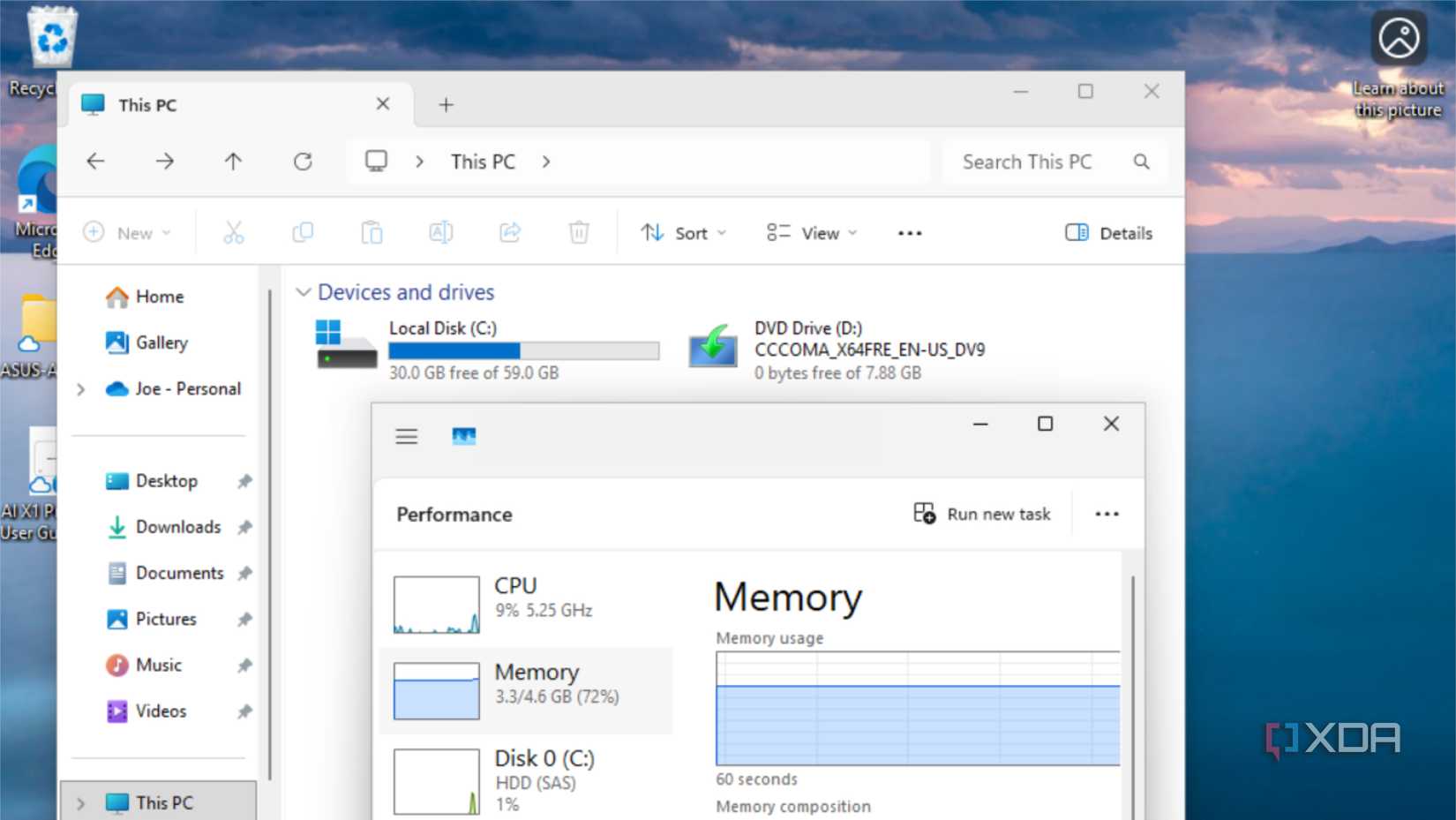
For testing purposes, I used a Windows 11 VM running in Hyper-V, so it’s pretty close to a normal Windows 11 install, with 8GB of RAM and a 60GB hard drive. Once the initial install was done, I saved a copy of the VM, so I had a fresh and identical installation to work with while testing the two downloadable debloat tools. Testing of Tiny11 was done by creating custom Windows 11 ISOs with the tool, also running in Hyper-V to give it the same baseline as the other tests.
A fresh Windows 11 25H2 installation after it has downloaded the necessary updates to both Windows and any installed apps from the Microsoft Store, running on Hyper-V, uses 29GB of storage space and 3.2GB of RAM.
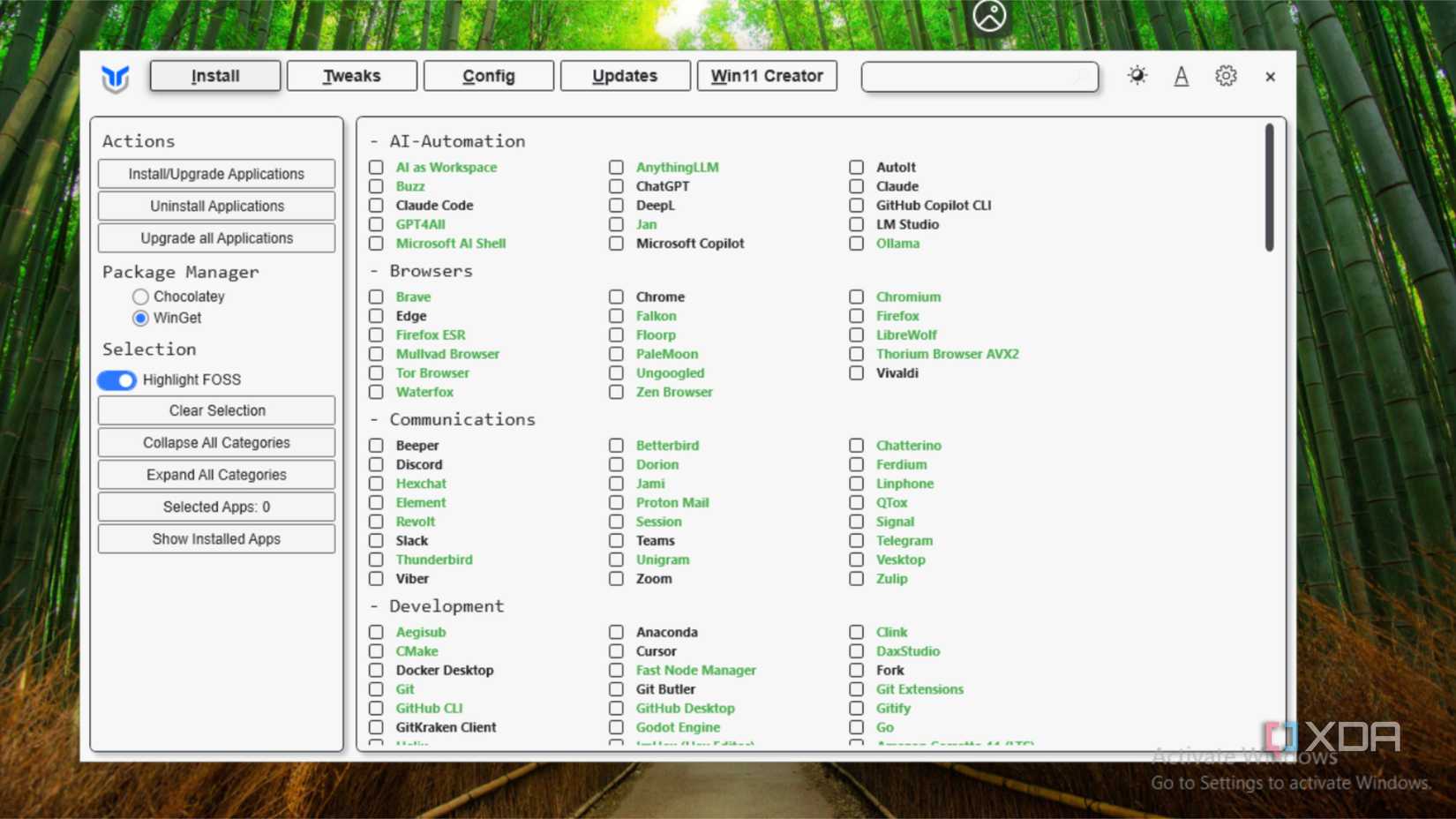
Chris Titus’ Windows Utility is one of the most-mentioned tools in any conversation about debloating. While it runs from a PowerShell script, you get a nice GUI with preset options for Standard and Minimal, plus the ability to revert any changes you made, plus a whole bunch of other tools to customize your Windows 11 installation.
I ran the Standard selection of tweaks and the advanced settings to remove unwanted preinstalled apps, plus the OO Shutup 10 tool, which is designed to protect user privacy, and checked what changed in resource usage and in missing programs. Then I rebooted to clear any cache or memory that was still in use. I gained 0.6GB of usable disk space, and used memory changed to 2.6GB out of the 8GB allocated to the VM.
It’s worth noting that this tool sets many Windows Services to run manually when the apps that need them run, which gives you more free memory to begin with, but can mean that programs take a split second longer to load while the associated services are started. It’s also worth noting that Copilot is not in the list of programs the preinstalled apps tool removes, but you do lose Teams, various Bing features, Todos, Sticky Notes, and a bunch of tools that I use daily.
This debloat tool runs a PowerShell script to strip features from Windows 11, much like Chris Titus’ tool. You can customize what it does, but I opted to see what the default settings would do to my VM. After 17 steps of debloat (including removing 91 apps!), I rebooted to check out the differences in resource use.
This time, I gained 0.4GB of usable disk space, and RAM usage dropped to 2.7 GB. Not much of a difference, but then again, people use these tools to gain back privacy and unclutter their Start Menu, not really to reduce space used.
Tiny11 Maker helps you debloat Win 11 before it gets installed. It does this by running a script on a Windows 11 ISO, using the DISM tool to tweak and remove things at the source. After that, it installs like a normal Windows 11 installation media, and that’s what I did on a fresh VM. One thing that was different here was that Windows didn’t ask me to sign in to a Microsoft account and let me create a local account instead. That’s going to be a plus point for many privacy advocates, and is worth calling out specifically.
After the installation was over, I checked the resource usage and Tiny11 uses 2.7GB of RAM, so that’s about the same as any other method. What did make a big difference is that it only used 15.3GB of disk space, nearly half that of a standard Windows 11 installation. That’s going to make it more usable for older devices with smaller storage capacities, especially while hardware upgrade prices are inflated.
It does this by removing almost every app that Windows usually comes with, including a web browser. You’ll have to go to the Microsoft Store to install Firefox or one of the other options to start browsing the internet, but at least you won’t be nagged about using Edge every five minutes.
Before we get into what could break from the things that are removed, there’s one big thing that can break before any user input is asked for. To use these debloat tools, you need to enable script execution with Set-ExecutionPolicy RemoteSigned and that means you’re trusting the contents of the PowerShell script to not be malicious. It easily could be, and I’d recommend at least reading through the contents of the downloaded script before running it, to see if anything stands out. A threat actor could insert anything into a PS script, and your system would be taken over as a result.
Raphire’s Win11Debloat disables Fast Startup, so Windows 11 performs a full shutdown when you turn off your computer. That’s a good thing for desktop users, but it can have issues on laptops in my experience. It’s about knowing what you can remove, and I wish these tools did a better job of explaining that before they make changes.
In many ways, it feels like the PC Cleaners and Registry Cleaners from Windows’ early days. I’m still not convinced they do anything other than give you a sense of “having done something.” Some of my feelings are borne out by facts, like the toggle for disabling telemetry data is unlikely to work, because Windows Home and Professional always send required diagnostic data to Microsoft. You’d need to be running the Long-Term Servicing Channel (LTSC) version of Windows 11 for any Group Policy or Registry settings about telemetry to be applied by Windows, and those are intended for businesses and aren’t the version most users running these scripts will have installed.
This one tool gives me back so much more of control over my day-to-day user experience
I’m not going to gloss over Microsoft’s faults, because I get angry every time advertising is added back to the Start Menu, File Explorer, or anywhere else. Or when the company sneaks a prompt to re-throne Edge as my default browser every major update. Or the prompts to upgrade my 365 Personal plan like I’m not going to get backups if I don’t, or the Copilot buttons that keep popping up like acne.
But I’m also not going to sit here and pretend that debloat tools are the answer. Every major version of Windows has had issues, most of them get fixed. We might even see Control Panel being fully integrated into the Settings app before Windows 12 arrives. The way to get Microsoft to stop putting junk into Windows is by making noise, not quietly removing them. That only sends the message that it doesn’t matter, and the company will keep shoveling junk into the OS.