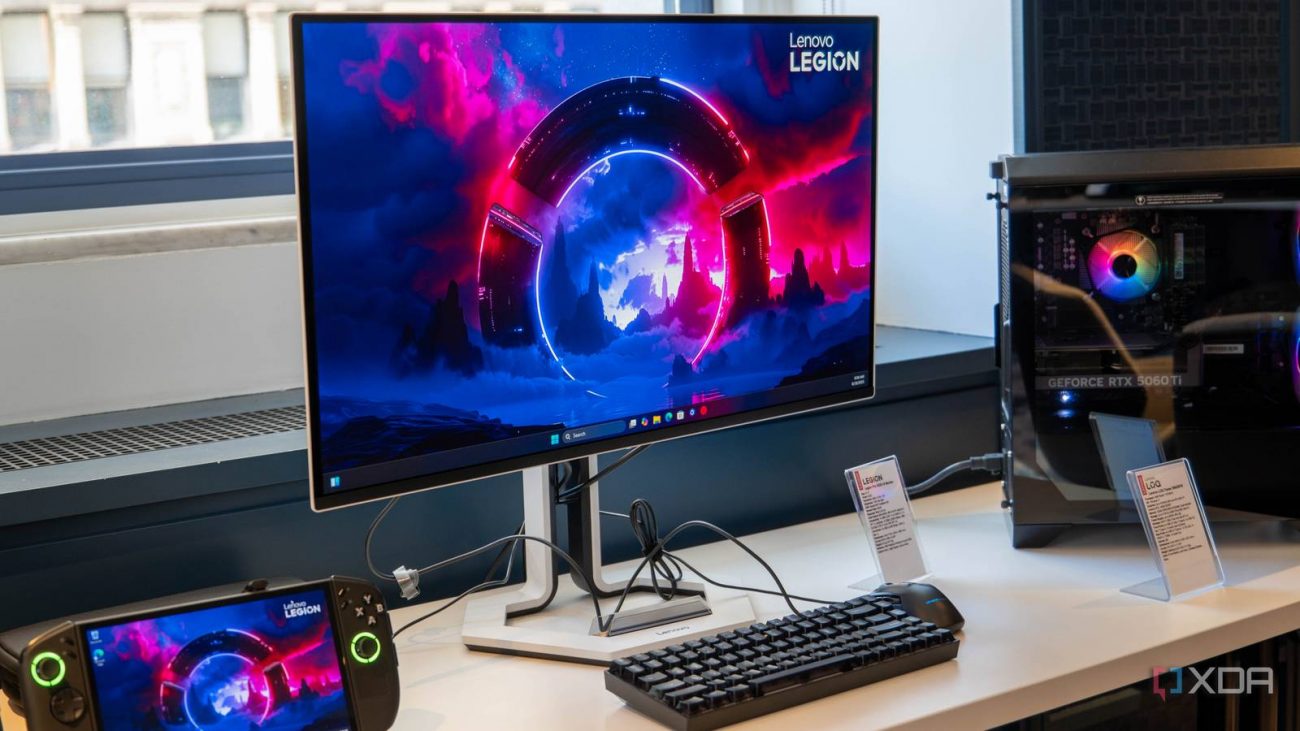
The topic 4 settings I always change on a new monitor right away is currently the subject of lively discussion — readers and analysts are keeping a close eye on developments.
This is taking place in a dynamic environment: companies’ decisions and competitors’ reactions can quickly change the picture.
A new monitor should look and perform exactly as advertised out of the box, but that’s not usually how it plays out. I’ve used several monitors over the past decade for gaming, and I’ve lost count of how many times a panel looked underwhelming the first time I turned it on, only to feel completely different after a few basic tweaks.
It’s usually not the panel’s fault, though. Even when I bought newer OLED monitors like the Alienware AW3425DW and AW2725DF, something always felt slightly off at first. Sometimes, it’s the colors or white balance, and other times, it’s simply because the monitor isn’t running at its advertised refresh rate. That’s why I always spend a few minutes in the OSD and Windows before I start using a new monitor.
We all have our preferences when it comes to how a monitor should look, so the default “Standard” color profile and brightness level that most monitors ship with might not be your cup of tea. Some may prefer a warmer look, but that’s not me, which is why I almost always end up switching to a custom color mode or tweaking the preset in the OSD until it looks right to my eyes.
If you’re not happy with any of the available presets, you can always dial it in by adjusting the color temperature, contrast, white balance, and gamma. Brightness is just as important, but this is where your panel type and room lighting start to matter more. On OLED panels, I usually crank up the brightness to get that extra punch for HDR content, but on LCDs, I almost always tone it down because they tend to be too bright, especially for gaming in a dark room.
If you’ve ever bought a high refresh rate monitor only to realize that it doesn’t feel as smooth as you expected, you’re not alone. There’s a good chance your monitor is still running at 60Hz, even if it supports 144Hz or higher. The problem here isn’t your monitor, but Windows, which tends to default to the standard 60Hz refresh rate.
The good thing is you can fix this within seconds from Display settings -> Advanced display settings in Windows or the Nvidia Control Panel if you have an Nvidia GPU. I always double-check this right after setting up a monitor because the difference is immediately noticeable, even on the desktop. Just keep in mind that if your monitor supports overclocked refresh rates, you may need to enable it in the OSD first before it shows up in Windows.
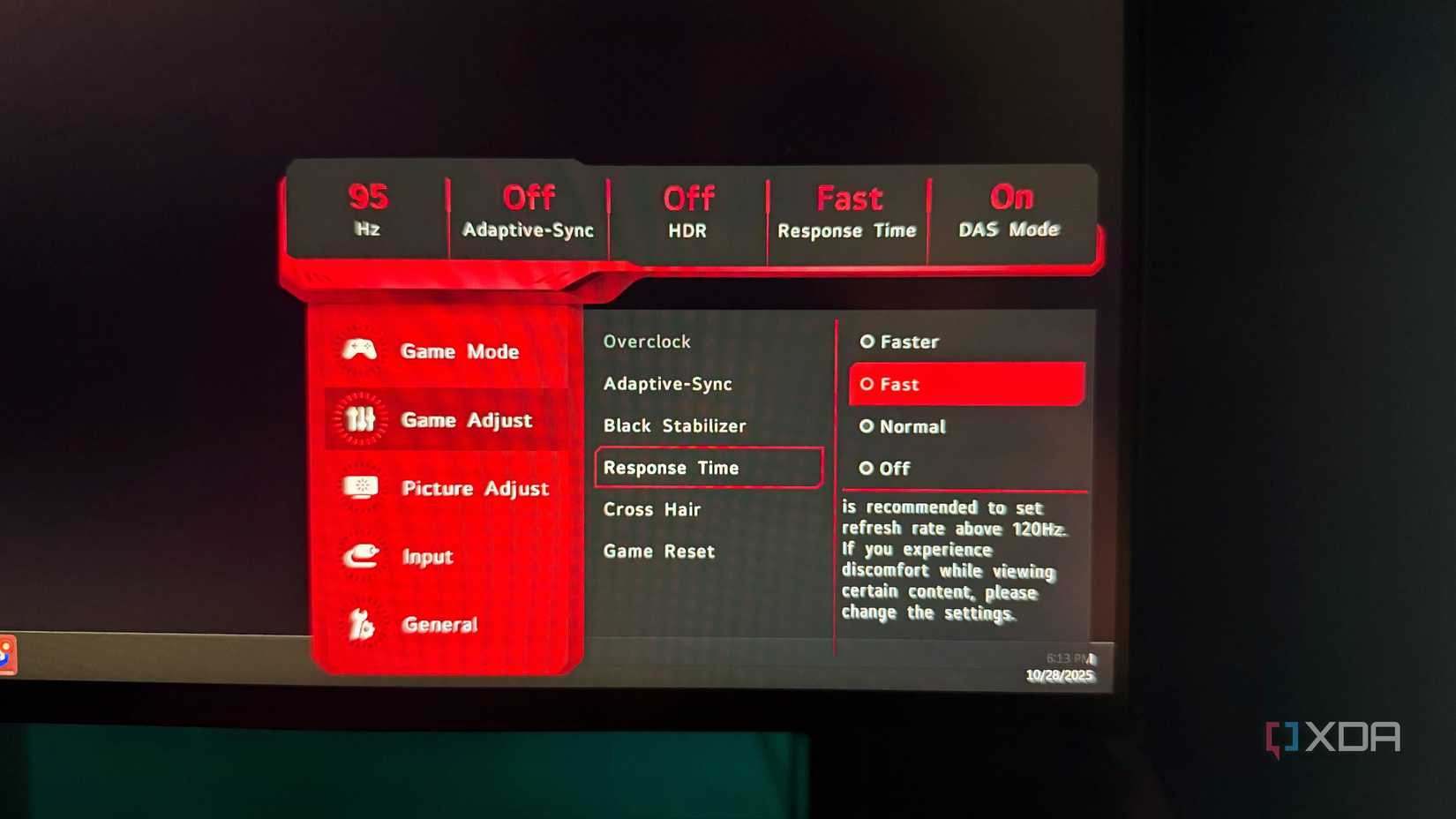
This isn’t something you have to worry about if you have an OLED panel since pixel response times are instantaneous. On top of that, these monitors don’t even give you a response time or overdrive setting to tweak in the first place. However, if you have an LCD, you must pay close attention to this setting because it can directly affect how motion looks in games.
The default “Normal” overdrive setting isn’t ideal because the response times are slower, and as a result, you’ll see motion blur or ghosting when you pan the camera around quickly in fast-paced games. On the other hand, the fastest setting leads to pixel overshoot and inverse ghosting, which shows up as visible trails behind moving objects. I usually avoid both of these issues by settling for the second-fastest overdrive setting in the OSD.
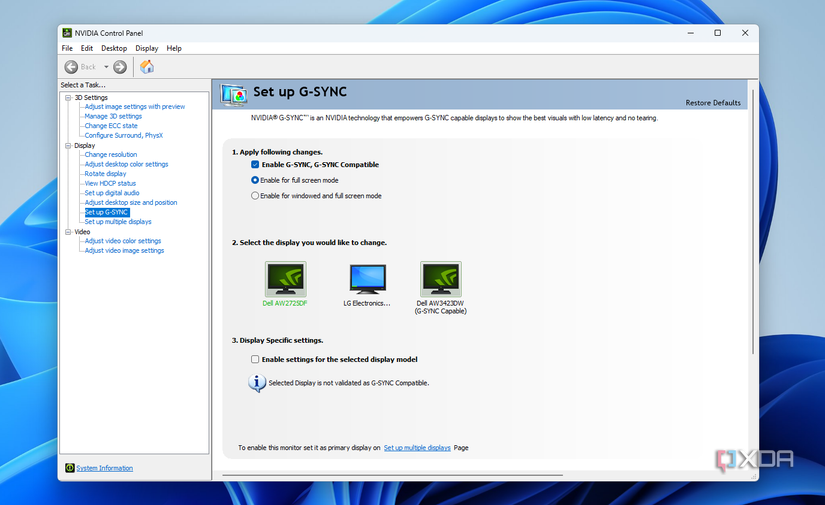
This is one of those settings that isn’t always turned on by default, even if your monitor supports it. I ran into this issue with my LG 27GN950 4K monitor, where everything looked fine at first, but I was still noticing screen tearing in Valorant and Fortnite. Even though the monitor is fully compatible with G-Sync, it wasn’t enabled on the GPU side.
That’s why it’s important to make sure the appropriate adaptive sync setting is enabled in the Nvidia Control Panel or AMD Radeon Settings. Some monitors may require you to enable G-Sync or FreeSync in the OSD before you can enable it in the Nvidia Control Panel. But once it’s set up properly, you’ll realize that screen tearing has completely disappeared, especially when your frame rate isn’t perfectly stable.
Most of the time, these settings are all it takes for a monitor to go from underwhelming to impressive. It’s easy to assume your panel just isn’t that good when something feels off, but things like color profiles, refresh rate, and response time can completely change how your monitor looks and feels. So before you start second-guessing your purchase, take a few minutes to go through the OSD and Windows settings and dial things in properly. There’s a good chance your monitor will look just as good as you expected, if not better.