The topic Distrobox is like a package manager for distros that runs on top of your distro, and… is currently the subject of lively discussion — readers and analysts are keeping a close eye on developments.
This is taking place in a dynamic environment: companies’ decisions and competitors’ reactions can quickly change the picture.
Package managers are one of the best parts of Linux, making it easier to manage what’s installed on your system, including specific versions of software you may need for specific projects. But they come with the downside that different distros often use different package managers, so installing the tools you need on a new PC with a new distro, or making the jump to a different flavor of Linux, can come with more hurdles than you’d like.
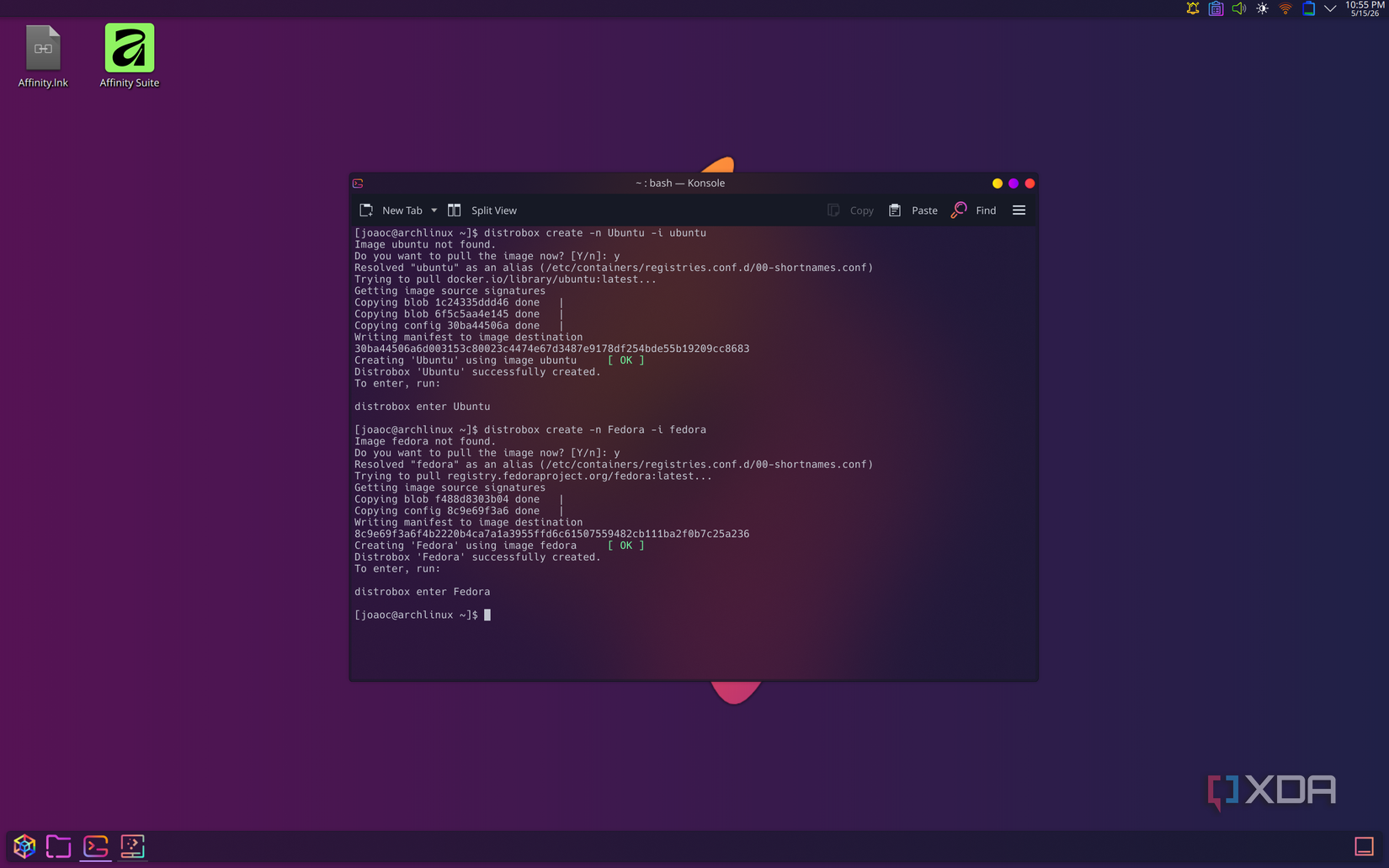
Thankfully, though, there’s a solution. Distrobox is a tool that makes distros themselves act as packages you can install or remove, meaning you can try different distros on your own main one, each one with a separate file system to prevent changes to your main workspace.
The most obvious benefit of something like Distrobox is the ability to run almost any distro you want on your system without having to sacrifice your primary one or reboot the PC to switch from one to the other. Using a container manager such as Docker or Podman as the backend, Distrobox lets you access almost any distro you want in container form.
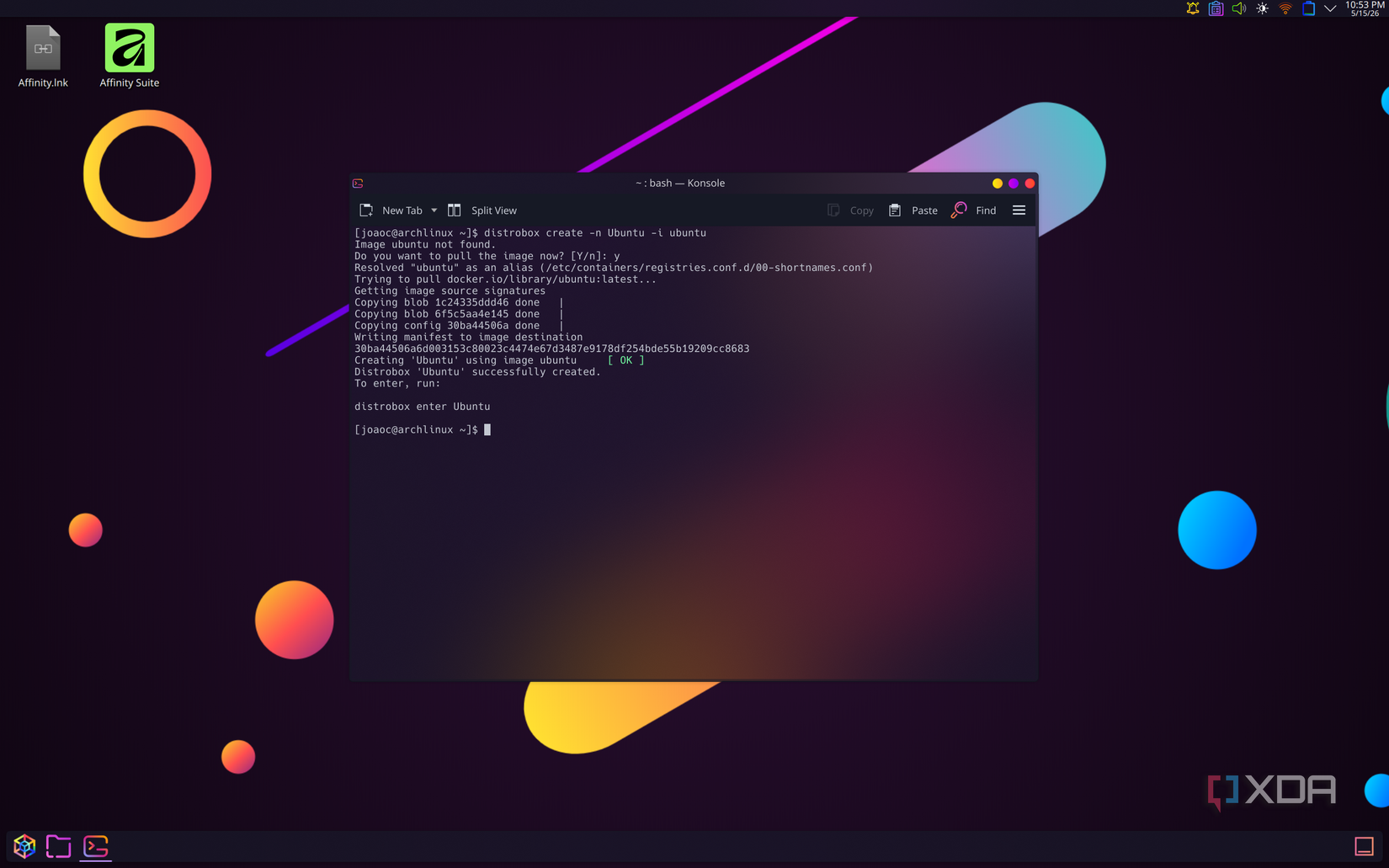
Containers share the same kernel as your machine, giving you close to native performance with much less overhead, so it’s a much more efficient solution than running a full VM. You still get the benefits of using those different distros, though. Are you an Ubuntu user looking for a package that’s only in the Arch User Repository? You can use Distrobox to install Arch and then use its package manager inside of it to install the tools you need. That applies to distros like Fedora, Linux Mint, and almost anything you can think of.
It’s not just terminal apps, either. You can also install GUI apps that are only available on other distros, or maybe the version of an app on a specific distro has a different look or set of features, and you can get it that way. Of course, you don’t get the full interface of that distro — there’s no desktop for your containerized distros, but if you only care about the tools available, Distrobox gives you that without many downsides.
While “different distros” is an easier selling point to make, the real benefit of something like Distrobox is for developers and others who may need specific versions of specific packages for a given project. It doesn’t even have to be a different distro than your host, but using a container means you can isolate the installed packages from your main system, so things don’t interfere with each other. Plus, a distro and a container in Distrobox aren’t the same thing; you can create multiple containers with the same distro so you have access to the same tools while still being independent.
A developer may be working on multiple projects at the same time, and those projects may require different versions of Python, or Node.js, or some other tool, because newer versions often introduce breaking changes for projects that depended on earlier releases. It’s such a common problem that there’s even a tool called Node Package Manager, or npm, specifically for juggling different versions of Node.js, but with Distrobox, you can do that for all your packages. You can have the exact combination of developer tools your project calls for and never worry about things breaking due to updates.
And again, you have the benefit of performance with a container versus a full VM. You can use development tools with little impact on performance this way.
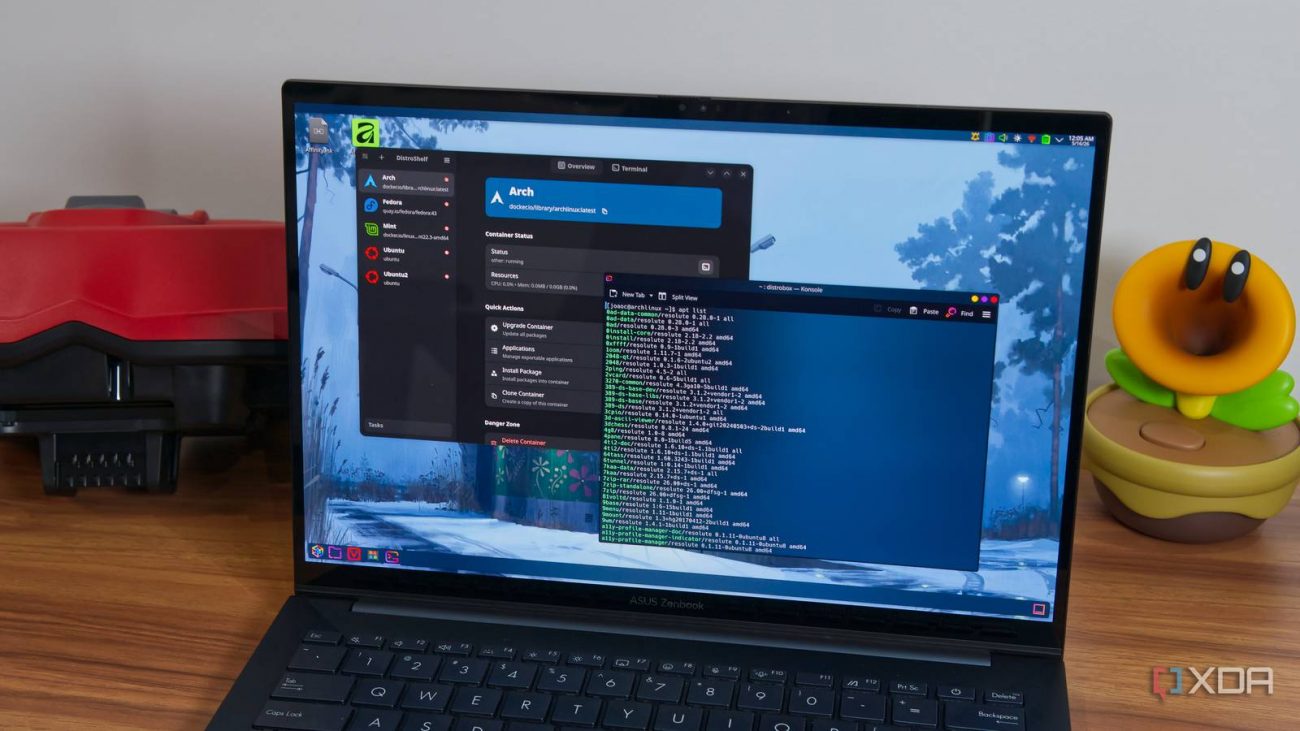
Distrobox is almost entirely a terminal-based tool, and it works perfectly fine that way, but sometimes, it’s nice to have a UI to make things a little easier on the eyes. And thankfully, such a tool exists in the form of DistroShelf, which acts as a frontend for Distrobox and gives you easy access to a lot of features.
With DistroShelf, you can easily create a new Distrobox container using an image of your choice, set a custom home directory, enable certain privileges or features like Nvidia GPU support, and a few others. And once a container is set up, you can quickly check its installed packages, add those packages to the launcher on your host operating system, and clone a container in case you want multiple instances with a similar set of tools.
While I can manage Distrobox alright with the terminal, I definitely prefer sticking with DistroShelf, and I recommend others do the same if the idea of using the terminal sounds a little too intimidating.
Whether you prefer using it in the terminal or rely on DistroShelf, Distrobox is an amazing tool and something you can’t really imagine on a Windows PC. There’s no way to really run Windows as a container, so you always have the overhead of a full virtual machine.
Distrobox lets you run multiple Linux instances with minimal performance impact, and it lets you experiment with versions of Linux that may work entirely differently from the host operating system, and that’s just amazing. You can get Distrobox from most package managers using your terminal, while DistroShelf is on Flathub as a Flatpak if you’d like to check it out.